> For the complete documentation index, see [llms.txt](https://docs.timeinpixels.com/llms.txt). Markdown versions of documentation pages are available by appending `.md` to page URLs; this page is available as [Markdown](https://docs.timeinpixels.com/nobe-lutbake/menu-bar-app.md).
# Menu Bar App
macOS menu bar app for automated LUT capture
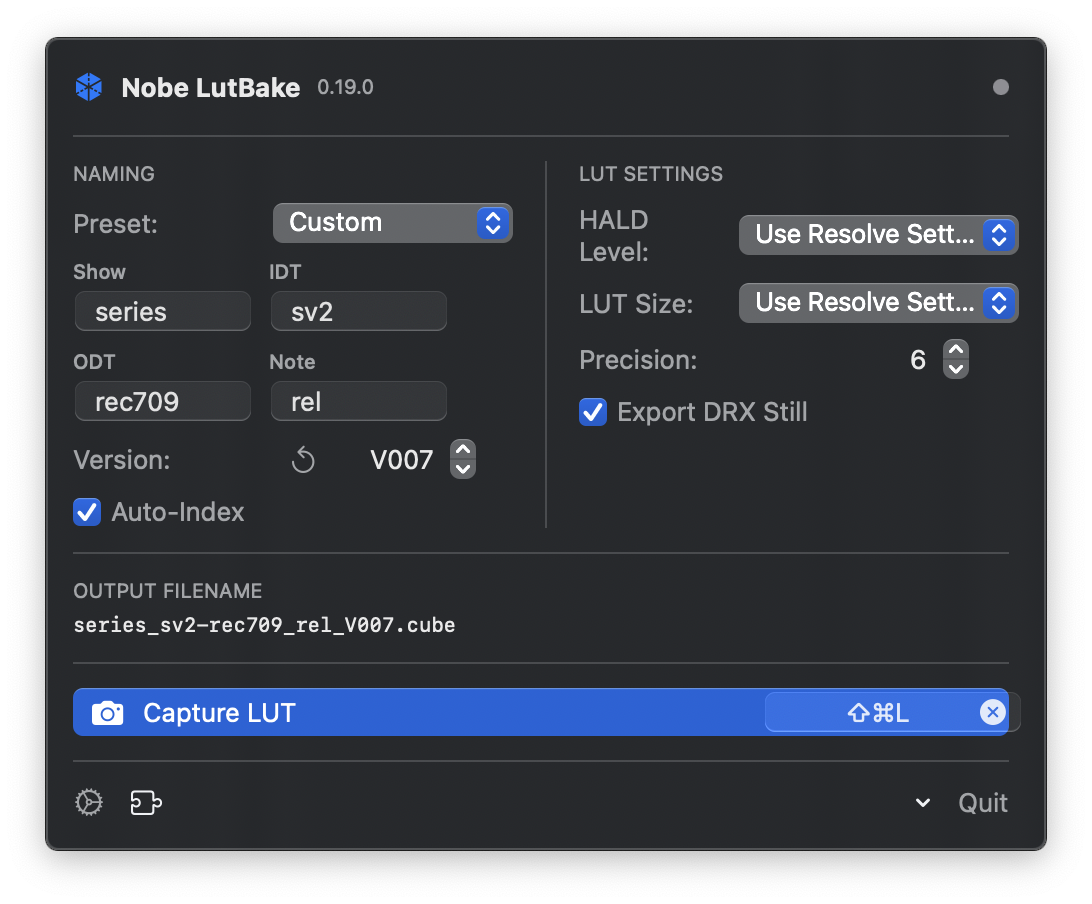
The Nobe LutBake menu bar app lives in the macOS menu bar and provides a convenient interface for capturing LUTs from DaVinci Resolve.
Menu bar popover showing plugin status and capture button
## Features
* **Global keyboard shortcut** — Trigger LUT capture from any app (default: `Cmd+Shift+L`).
* **Plugin status** — Shows whether the OFX plugin is installed and detected.
* **Capture button** — Click to capture a LUT without using the keyboard shortcut.
* **Settings** — Configure output path, LUT size, filename templates, and more.
* **Launch at login** — Optionally starts automatically when you log in (via macOS Login Items).
* **Auto updates** — Automatic updates keep you on the latest version.
## Settings
### General
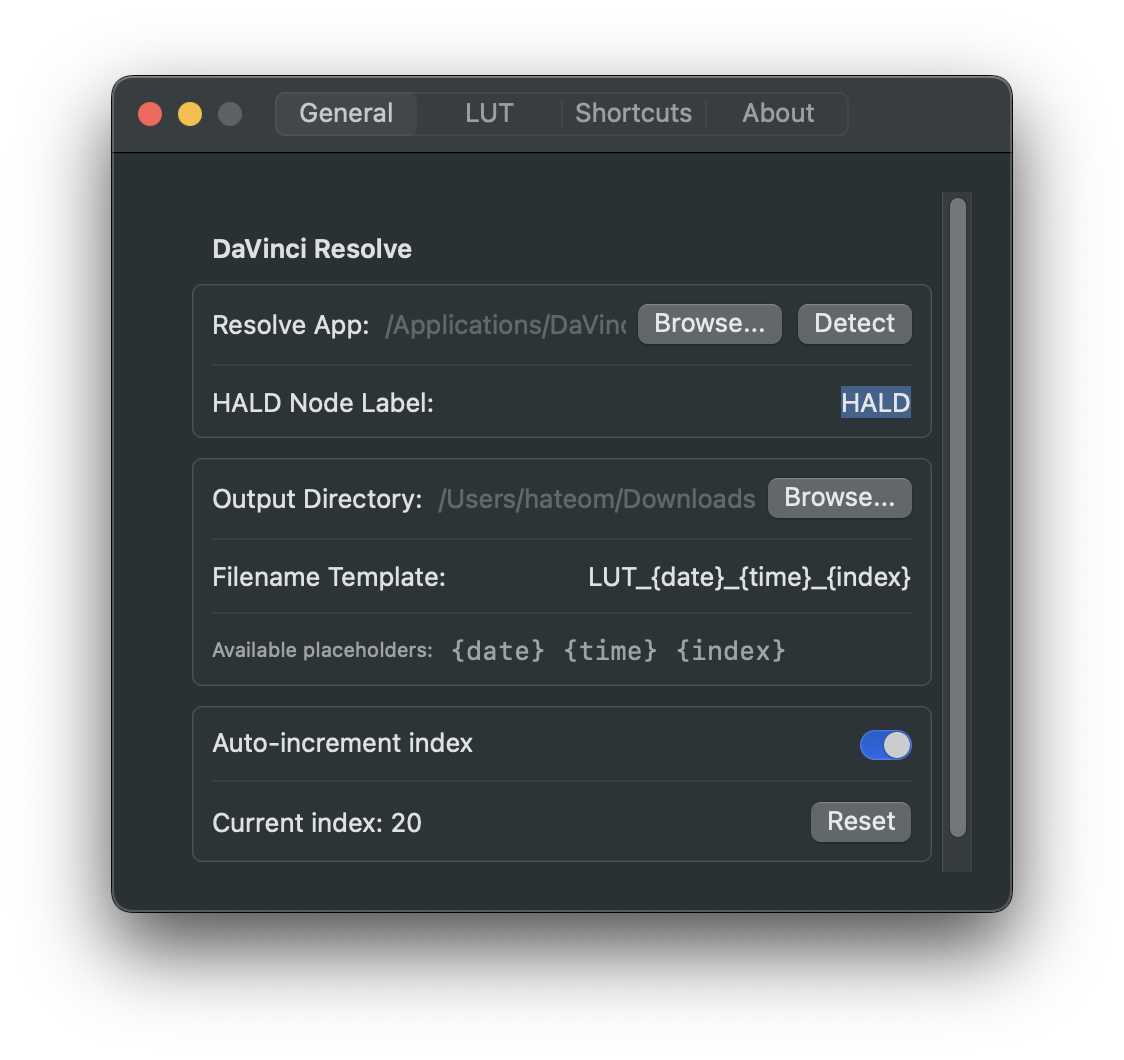
General settings tab
* **Output folder** — Directory where `.cube` files are saved. On macOS 0.34.0 and later, the folder selection dialog includes a **New Folder** button so you can create a destination folder directly from the picker.
* **Filename template** — Supports placeholders for auto-incrementing filenames.
* **Node label** — Label of the HALD Generator node the app should toggle (default: `HALD`). On DaVinci Resolve 20+, nodes are also discovered automatically via `GetToolsInNode()`, so labeling is optional.
* **Node graph** — Choose between Clip, Timeline, Group Pre-Clip, or Group Post-Clip. The app scans all graphs in processing order (Pre-Clip → Clip → Post-Clip → Timeline) to find your LutBake nodes, so this setting is mainly used as a hint for older Resolve versions.
* **Resolve path** — Path to the DaVinci Resolve application.
* **Python Interpreter** — By default, the app uses **System python3**. An optional **Use fuscript (advanced)** toggle switches to Resolve's bundled interpreter for compatibility troubleshooting in restricted environments.
* **Scan for spatial effects before capture** — When enabled, the app scans for spatial effects between your two LutBake nodes before each capture. On DaVinci Resolve 20+, it uses the `GetToolsInNode()` API to identify 40+ known spatial tools (blur, sharpen, grain, noise reduction, Power Windows, and more) across all node graphs. Unknown or third-party plugins are flagged via heuristic keyword matching. On older Resolve versions, it falls back to node label matching.
* **Warn on suspected spatial corruption** — When enabled, shows a post-capture warning if the extracted LUT data shows mathematical signs of spatial corruption (e.g., from effects that were active during capture).
* **Refresh LUT list after capture** — When enabled, automatically calls Resolve's `RefreshLUTList()` after saving a LUT so it appears immediately in Resolve's 3D LUT dropdown menus without needing to manually click "Update Lists". Disabled by default. Available on both macOS and Windows (0.28.0+).
#### Spatial effects warning dialog
When the preflight scan detects spatial effects, a dialog shows the detected tools grouped by confidence level:
* **Known spatial effects** — tools confirmed to corrupt LUT baking (e.g., Gaussian Blur, Power Windows, Film Grain).
* **Possible spatial effects** — unknown tools matched by heuristic keywords.
The dialog offers three options (two on Resolve < 20):
* **Auto-Disable & Capture** (Resolve 20+ only) — temporarily disables the detected spatial nodes, captures the LUT, and restores your original grade via version rollback.
* **Continue Anyway** — captures without disabling anything.
* **Cancel** — aborts the capture.
A **"Don't warn again this session"** checkbox suppresses the warning for all subsequent captures until the app is restarted.
### Presets
Presets let you save and recall complete sets of capture settings — output folder, filename template, node label, LUT size, and more.
* **Switching presets** — Selecting a preset fills only empty fields with preset values; existing field values are preserved (0.29.0+).
* **Update Preset** — After editing settings, click **Update Preset** to save the current field values back to the active preset (0.29.0+).
* **Editing fields** — Changing Show, IDT, ODT, or Note fields no longer deselects the active preset (0.29.0+).
* **Template placeholders** — Filename template placeholders are case-insensitive: `{IDT}` and `{idt}` are equivalent (0.29.0+).
### LUT Settings
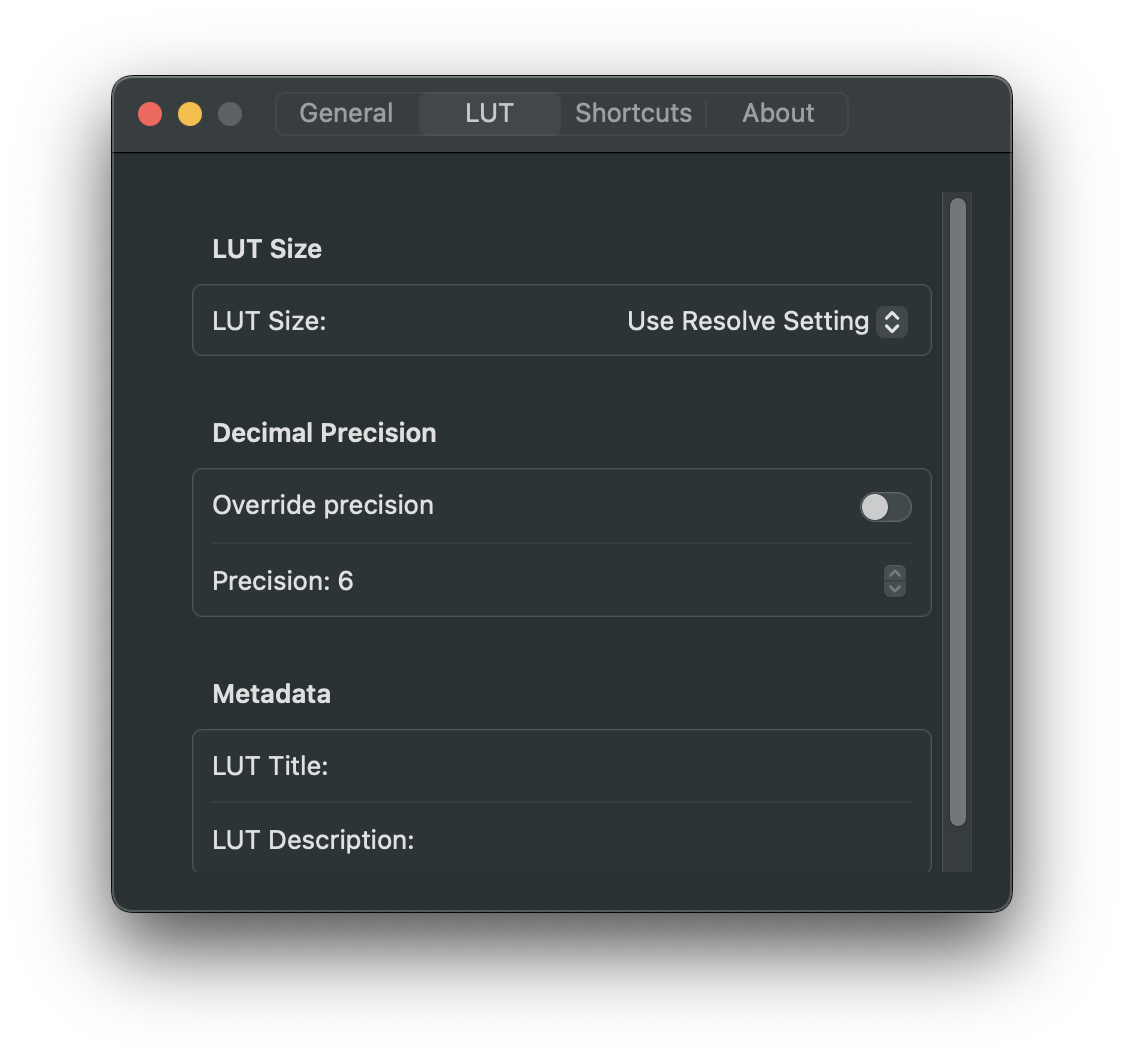
LUT settings tab
* **LUT size** — Override the plugin's LUT size setting (17, 33, 64, 65, or 100). Use 64 with HALD 8 or 100 with HALD 10 for zero interpolation error.
* **HALD level** — Override the plugin's HALD level.
* **Title** — Metadata written into the `.cube` file header.
* **Description** — Additional metadata for the `.cube` file.
* **Decimal precision** — Number of decimal places in the `.cube` output (1-16, default 10).
* **Clamp output to 0..1** — Clamps LUT output values to `[0, 1]` before writing. Enabled by default for broad compatibility.
### Keyboard Shortcuts
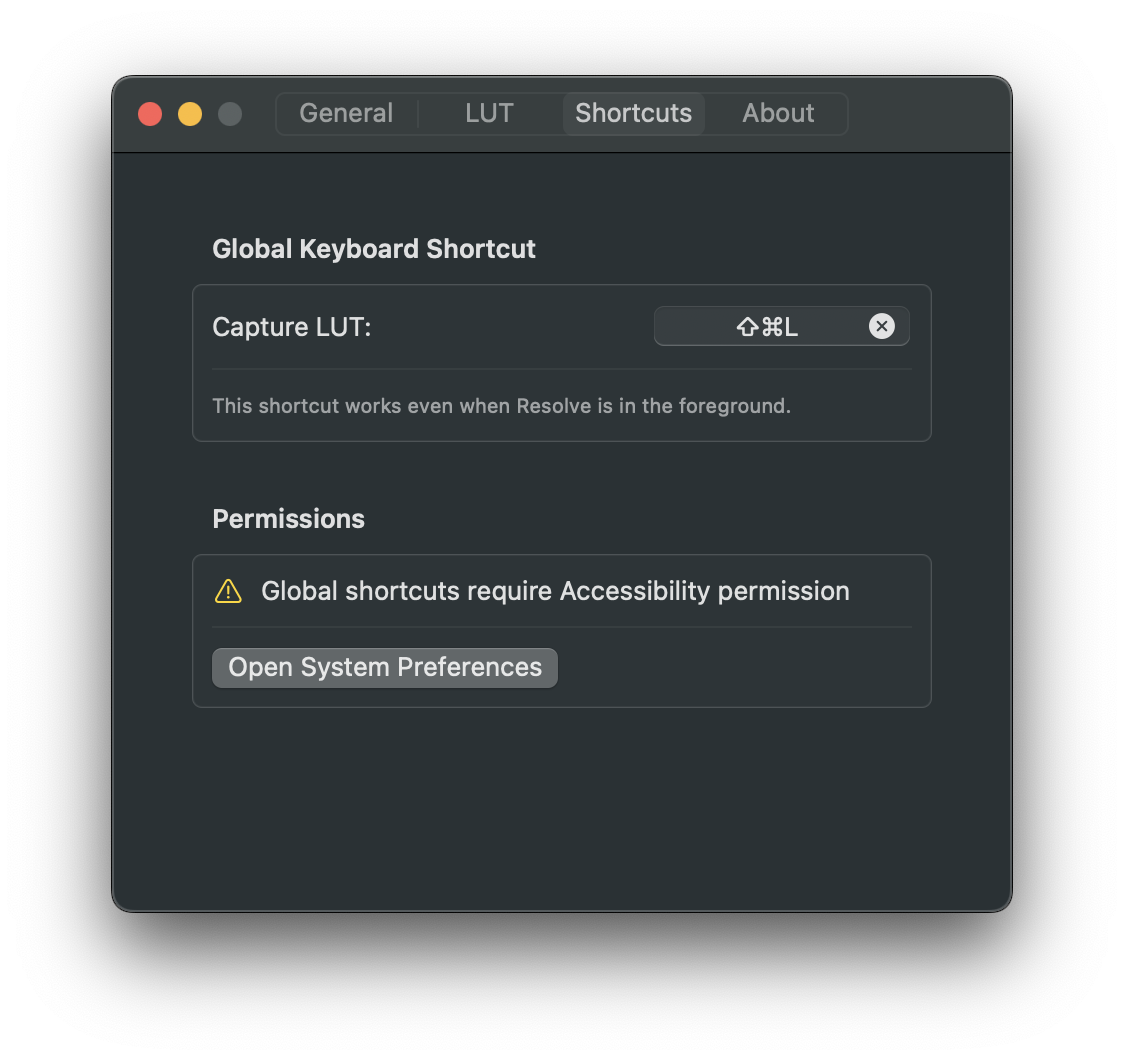
Keyboard shortcuts tab
Configure the global keyboard shortcut for LUT capture. The shortcut works system-wide, even when Resolve is in the foreground.
## DRX Still Export
When enabled, the app automatically grabs a still from the current frame after each LUT capture and exports it as a `.drx` file in the same output directory. This is useful for archiving a visual reference alongside each LUT.
{% hint style="info" %}
Resolve adds its own suffix to DRX filenames (e.g., `LUT_001_1.1.3.PRE.drx`). The app cannot control this naming convention.
{% endhint %}
## Launch at Login
Nobe LutBake can register itself as a macOS login item so it starts automatically when you log in. This is configured during the [setup wizard](/nobe-lutbake/first-launch-wizard.md) on the final "Ready" step, or can be managed in **macOS System Settings > General > Login Items**.
The app uses macOS `SMAppService` — no background helper or daemon is involved. The login item appears under your account's **Login Items** in System Settings.
## OFX Plugin Installation
The app can install the OFX plugin with a single click. The plugin is linked to the app bundle, so updating the app automatically updates the plugin as well.