Web False Color App
The Web False Color App is a browser-based false color analysis tool that runs entirely in your browser using WebGL. It provides real-time false color overlays for exposure analysis of images — no installation required.
Try it now: https://timeinpixels.com/false-color-app/

Getting Started
Open the app at https://timeinpixels.com/false-color-app/
Click Open Image or drag and drop an image onto the preview area
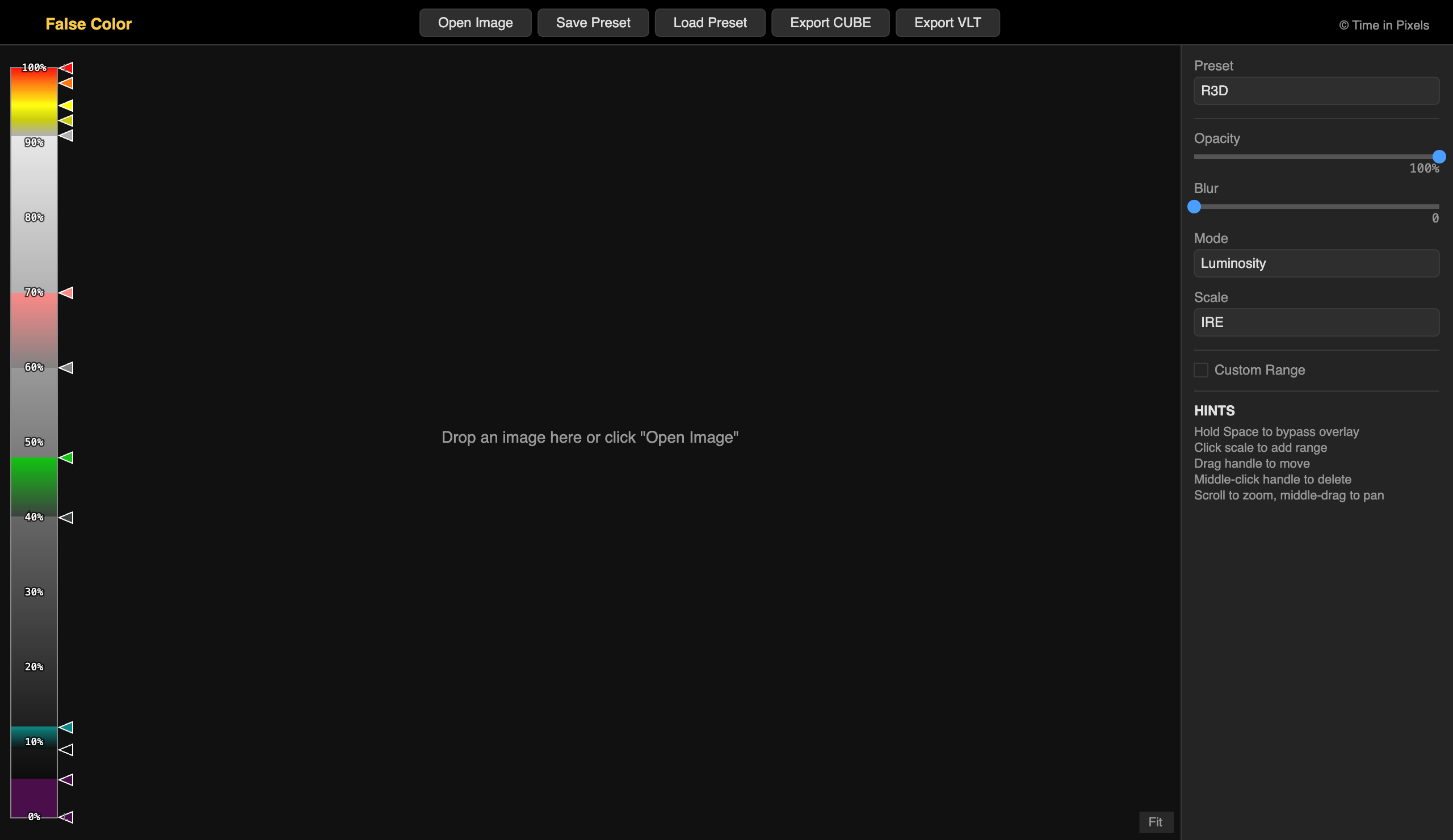
The false color overlay is applied immediately using the default R3D preset
Supported image formats: PNG, JPEG, BMP, TIFF, and other formats supported by your browser.

Features
Presets
The app includes 16 built-in false color presets matching popular monitoring hardware:
R3D — RED camera false color
R3D Legacy (version 2.x) — older RED camera false color
Flanders — Flanders Scientific monitors
SmallHD (50x, 70x) — SmallHD 500/700 series
SmallHD (DPx) — SmallHD DP series
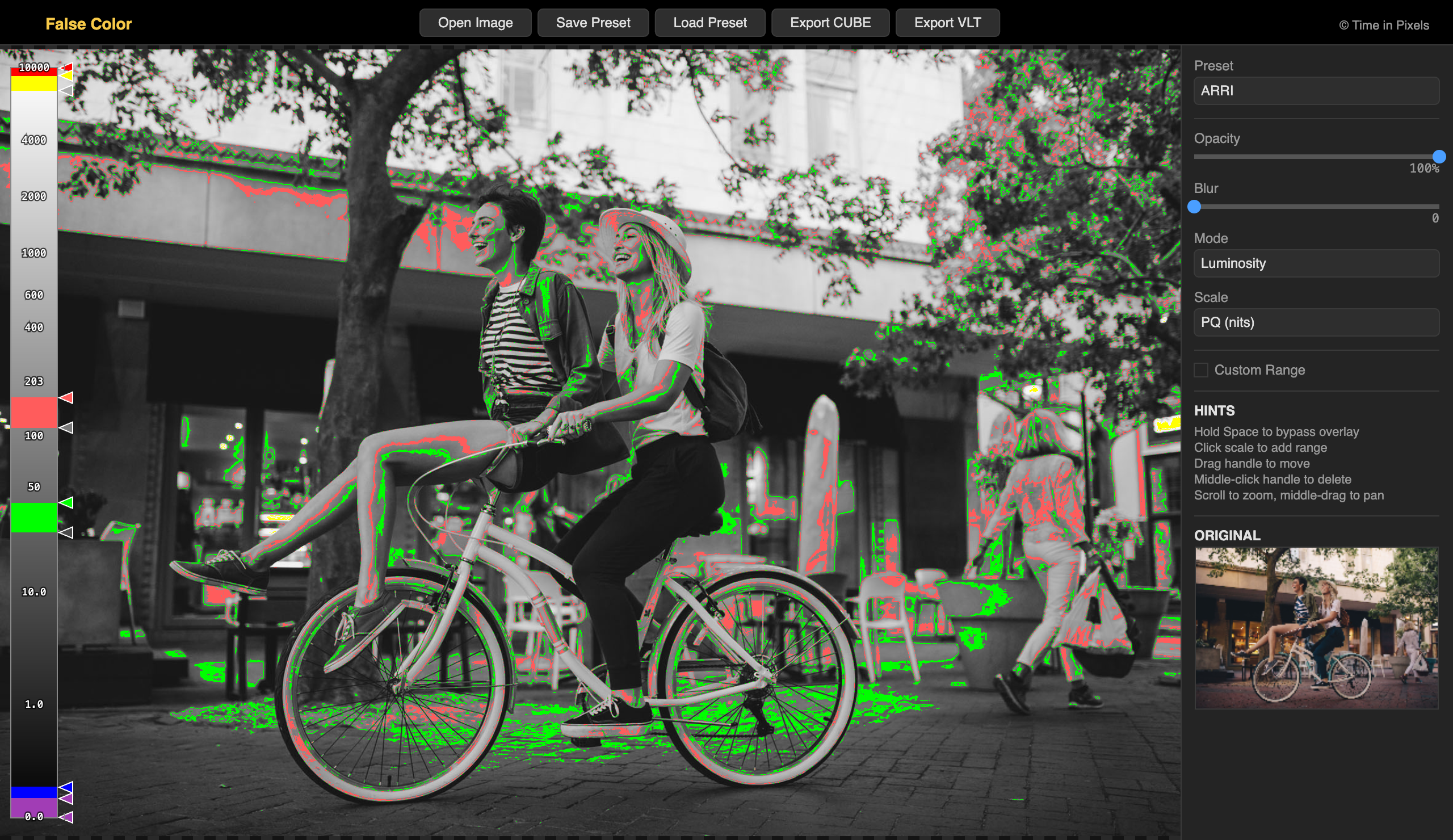
ARRI — ARRI camera false color
Atomos — Atomos monitors
Atomos 2 — Atomos monitors (variant)
BlackMagic Video Assist — BMD Video Assist
Zacuto — Zacuto monitors
VideoDevices PIX-E4 — Sound Devices PIX-E4
VideoDevices PIX-E12 — Sound Devices PIX-E12
Skintones — highlights skin tone exposure ranges
Highlights — focus on highlight detail
Shadows — focus on shadow detail
Saturation — color saturation analysis
You can also save and load custom presets as JSON files using the Save Preset and Load Preset toolbar buttons.
Analysis Modes
Five analysis modes are available from the Mode dropdown:
Luminosity — standard false color based on pixel luminance (default)
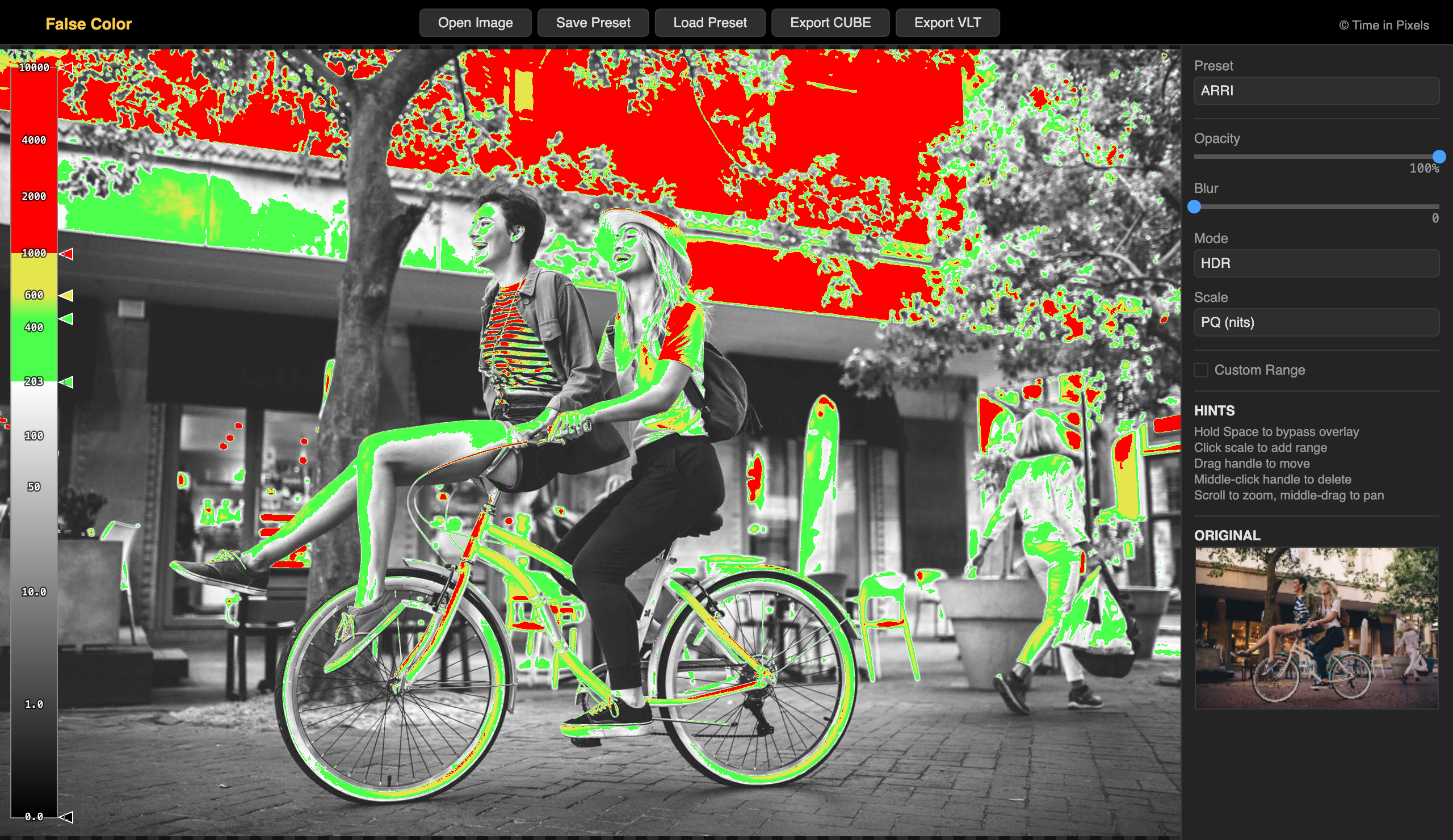
HDR — HDR-aware analysis using PQ (ST 2084) transfer function
Saturation (HSL) — color saturation using the HSL color model
Saturation (HSV) — color saturation using the HSV color model
Hue — color hue analysis
HDR Mode
When HDR mode is selected, the app switches to a specialized 6-indicator HDR preset designed for analyzing high dynamic range content. The scale automatically switches to PQ (nits).

HDR mode provides two additional controls:
Mastering Level — sets the peak luminance in nits (1000–10000). The red indicator on the scale automatically adjusts to match this level.
SDR White Level — selects the SDR reference white point: 100, 203, or 300 nits. The green indicator adjusts accordingly.
While in HDR mode, the preset and scale dropdowns are locked to prevent accidental changes. Switching back to another mode restores your previous preset.
Scale Overlay
The vertical scale bar on the left side of the preview shows the color mapping with labeled values. Several scale formats are available:
IRE — standard IRE units (0–100%)
8-bit — 0–255 range
10-bit — 0–1023 range
mV — millivolts (analog video)
PQ (nits) — ST 2084 perceptual quantizer in nits
HLG — Hybrid Log-Gamma
The scale is fully interactive:
Click on the scale bar to add a new color indicator at that position
Drag an existing indicator handle to reposition it
Middle-click an indicator handle to delete it
Click an indicator to select it and edit its color and properties in a popup
Opacity & Blur
Opacity slider (0–100%) — blend between the false color overlay and the original image. Hold Space to temporarily bypass the overlay and see the original.
Blur slider (0–45) — apply gaussian blur before analysis, useful for smoothing out noise in the exposure reading.
Custom Range
Enable the Custom Range checkbox to overlay two additional color bands on the false color display. This is useful for quickly highlighting a specific exposure range:
Set the Min and Max percentage values
Choose custom colors for each boundary
The custom range overlays on top of the active preset
Zoom & Pan
Scroll wheel — zoom in/out centered on the cursor
Middle mouse button drag (or Alt + left drag) — pan the image
Double-click or click Fit button — reset zoom to fit
When zoomed in beyond 100%, a mini-map appears in the bottom-right corner showing your current viewport position within the full image, along with the zoom percentage.
Original Thumbnail
When an image is loaded, a small thumbnail of the original (unprocessed) image is displayed in the sidebar under the Original section. This provides a quick reference for comparison against the false color overlay.
LUT Export
The app can export the current false color preset as a 3D LUT file for use in other applications:
Export CUBE — exports a 65x65x65 .cube LUT file (compatible with DaVinci Resolve, Premiere Pro, and other NLEs)
Export VLT — exports a 17x17x17 .vlt LUT file (compatible with Panasonic Varicam and other cameras)
LUT export requires a valid license key. Clicking an export button will prompt for license activation if not already licensed.
State Persistence
The app automatically saves your current settings and loaded image to your browser's local storage (IndexedDB). When you return to the app, your previous session is restored including:
Active preset and indicator positions
All slider and dropdown settings
The loaded image
HDR mode settings
Requirements
A modern web browser with WebGL support (Chrome, Firefox, Safari, Edge)
No installation or plugins required
Works on desktop and laptop computers
Last updated