> For the complete documentation index, see [llms.txt](https://docs.timeinpixels.com/llms.txt). Markdown versions of documentation pages are available by appending `.md` to page URLs; this page is available as [Markdown](https://docs.timeinpixels.com/nobe-lutbake/first-launch-wizard.md).
# First Launch Wizard
Guided setup on first launch
When you launch Nobe LutBake for the first time, a setup wizard guides you through the essential configuration steps. The wizard ensures the OFX plugin is installed, explains how to set up the node graph in DaVinci Resolve, and lets you choose your preferred node graph type.
## Step 1: Welcome
The wizard opens automatically on first launch with a brief overview of what Nobe LutBake does.
Welcome screen
## Step 2: Install Plugin
The wizard checks whether the OFX plugin is already installed. If not, click the install button to set it up. A green checkmark confirms the plugin is ready.
OFX plugin status
{% hint style="info" %}
The OFX plugin is linked to the app bundle — updating the app automatically updates the plugin.
{% endhint %}
## Step 3: Resolve Setup
Two screens walk you through setting up the node graph inside DaVinci Resolve.
### Add the HALD Generator Node
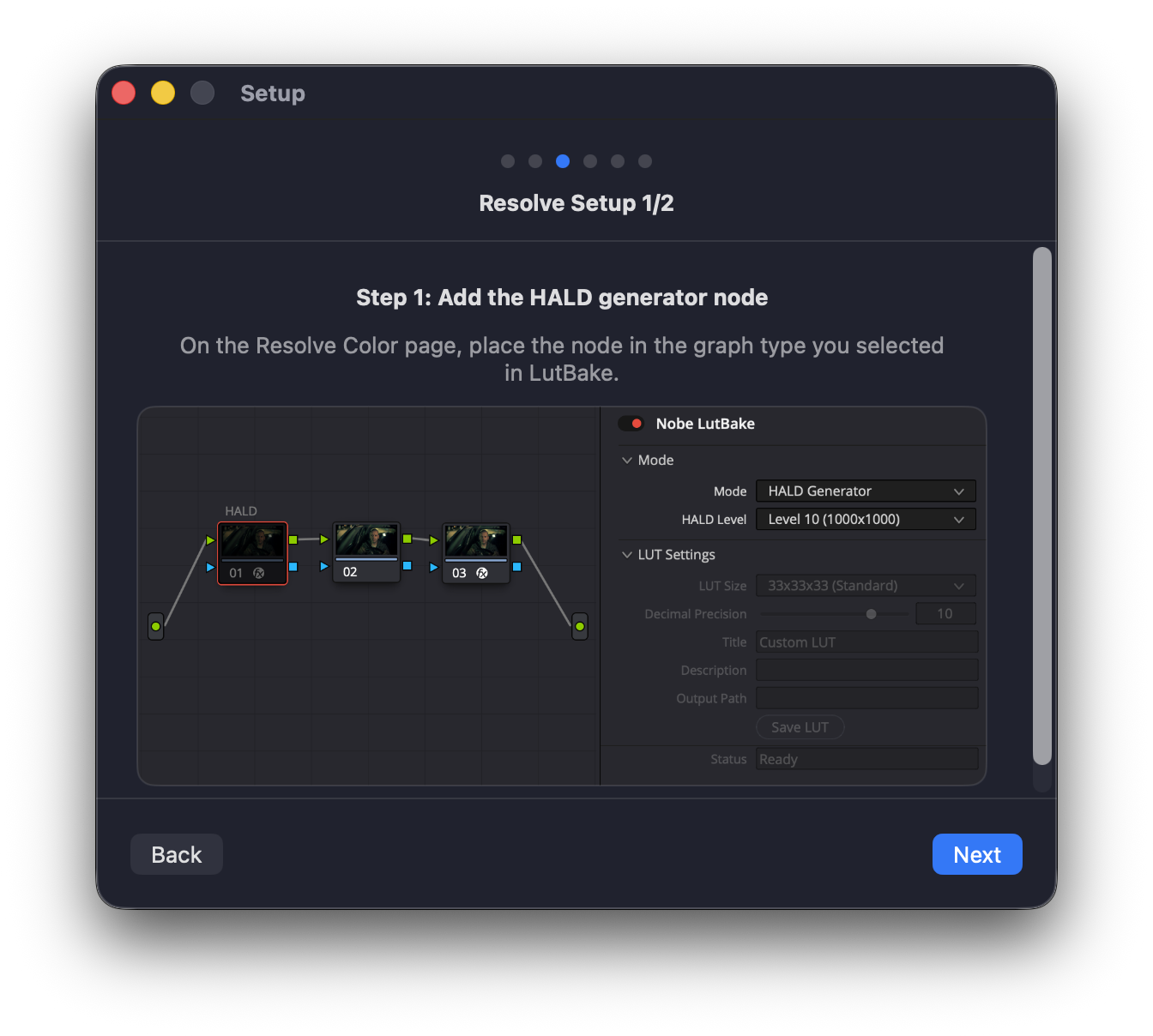
On the Resolve Color page, add a **Nobe LutBake** OFX node set to **HALD Generator** mode at the beginning of your node chain. Add your color correction nodes after it, then place a second **Nobe LutBake** node set to **LUT Generator** mode at the end.
Step 1: Add the HALD generator node
{% hint style="warning" %}
**Only color-to-color corrections belong between the LutBake nodes.** Disable or move spatial effects (blur, sharpen, noise reduction, Power Windows), temporal effects (denoise, motion blur), and texture effects (grain, glow, lens flares) outside the capture range — these cannot be represented in a 3D LUT. If you are used to Resolve's built-in Generate LUT bypassing spatial effects automatically, note that LutBake does not do this. The app scans for 40+ known spatial tools before each capture and offers to auto-disable them on DaVinci Resolve 20+. Post-capture validation catches anything the scan missed. Correct node placement is still the best safeguard.
{% endhint %}
### Confirm Node Label and Chain
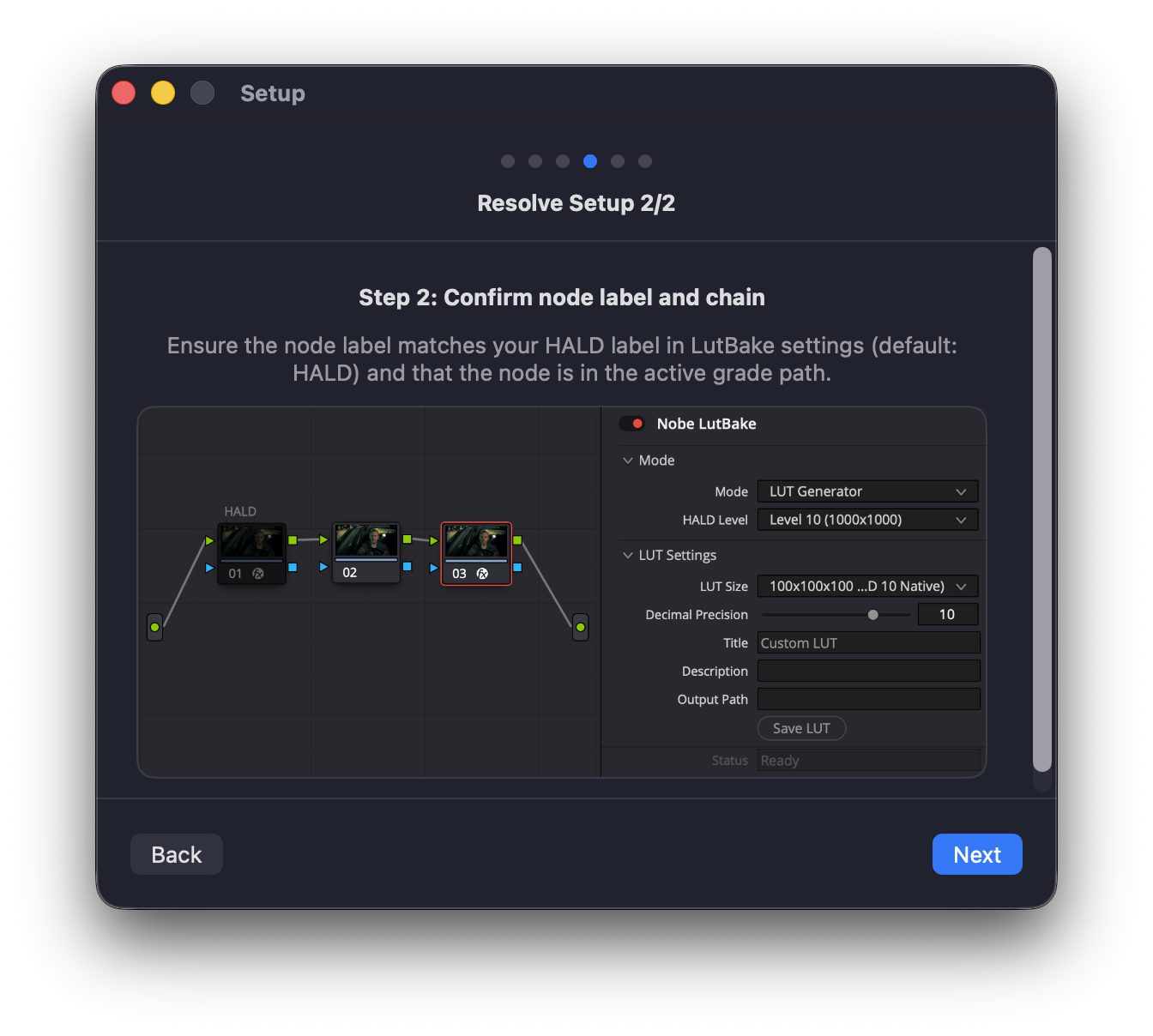
Make sure the first node is labeled `HALD` (the default label the app searches for) and that both LutBake nodes are in the active grade path.
Step 2: Confirm node label and chain
{% hint style="warning" %}
The node label must match the **Node Label** setting in the app (default: `HALD`). If you rename the node, update the setting in **Settings > General** as well.
{% endhint %}
## Step 4: Node Graph Setup
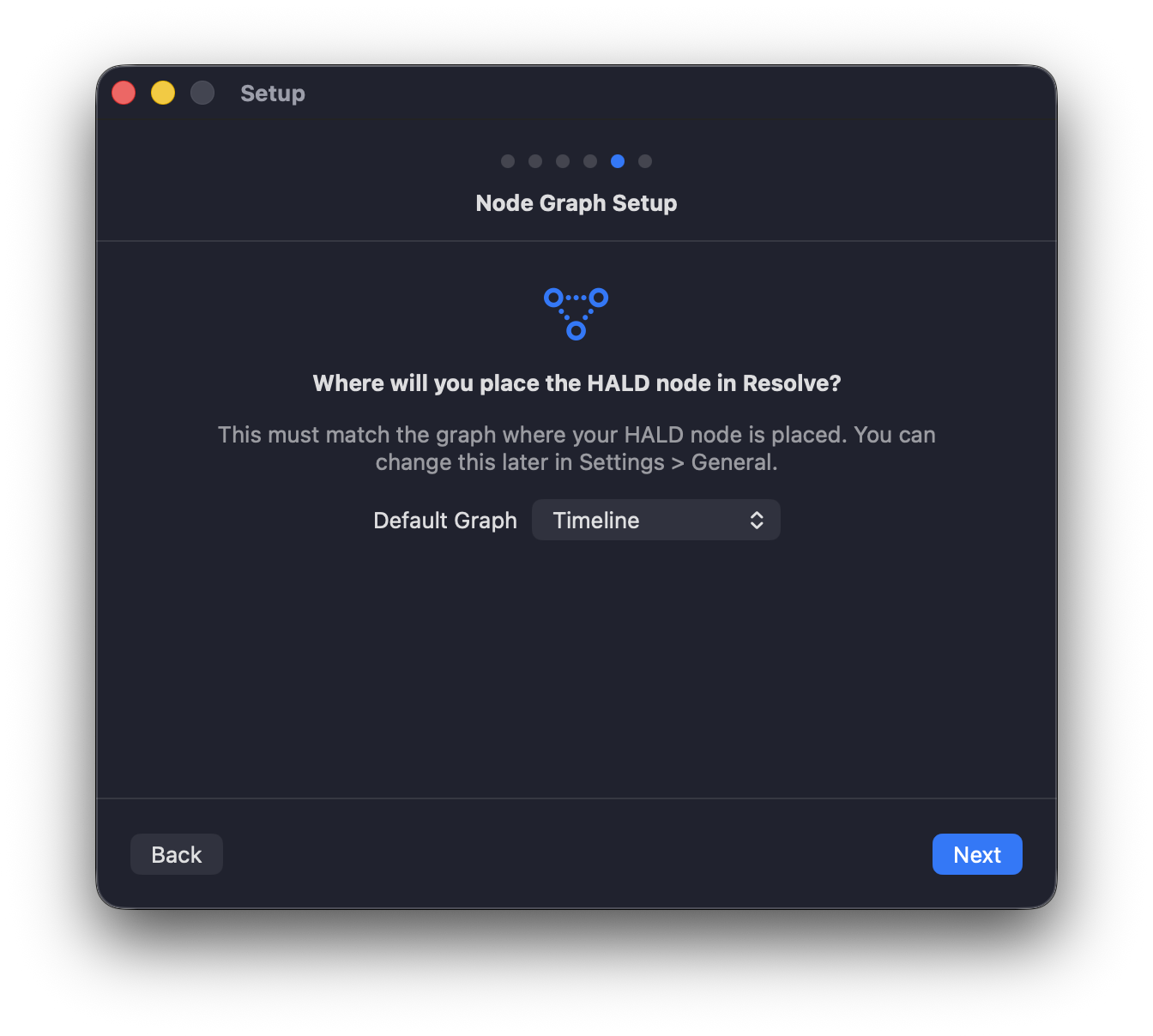
Choose where you will place the HALD nodes in Resolve. This setting must match the actual graph type where your nodes live.
Node graph type selection
| Type | Description |
| ------------------- | -------------------------------------------- |
| **Clip** | Main clip node tree (default for most users) |
| **Timeline** | Timeline-level node graph |
| **Group Pre-Clip** | Applied before clip corrections |
| **Group Post-Clip** | Applied after clip corrections |
You can change this later in **Settings > General**.
## Step 5: Ready
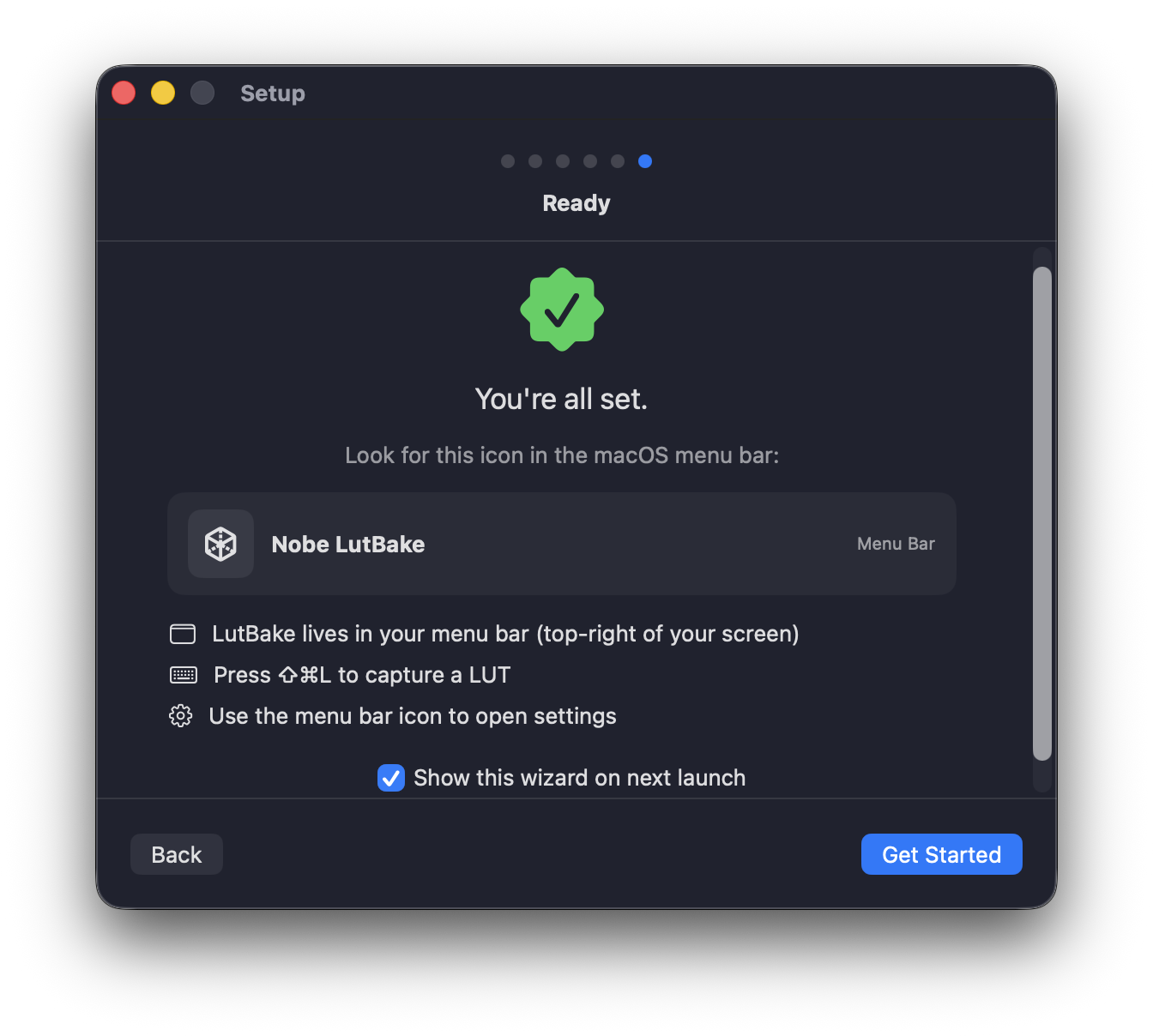
The final screen confirms everything is set up and shows you where to find the app in the macOS menu bar.
Setup complete
Key things to remember:
* Nobe LutBake lives in your **menu bar** (top-right of screen).
* Press **⇧⌘L** to capture a LUT at any time.
* Click the menu bar icon to open settings.
Options on this step:
* **Launch at login** — Registers the app as a macOS login item via the system's `Login Items` mechanism (System Settings > General > Login Items). When enabled, Nobe LutBake starts automatically when you log in to your Mac. This uses macOS `SMAppService` — no background helper or daemon is involved.
* **Show this wizard on next launch** — Re-runs the setup wizard when the app is next opened.
{% hint style="info" %}
You can manage the login item later in **macOS System Settings > General > Login Items**, or by re-running the wizard.
{% endhint %}