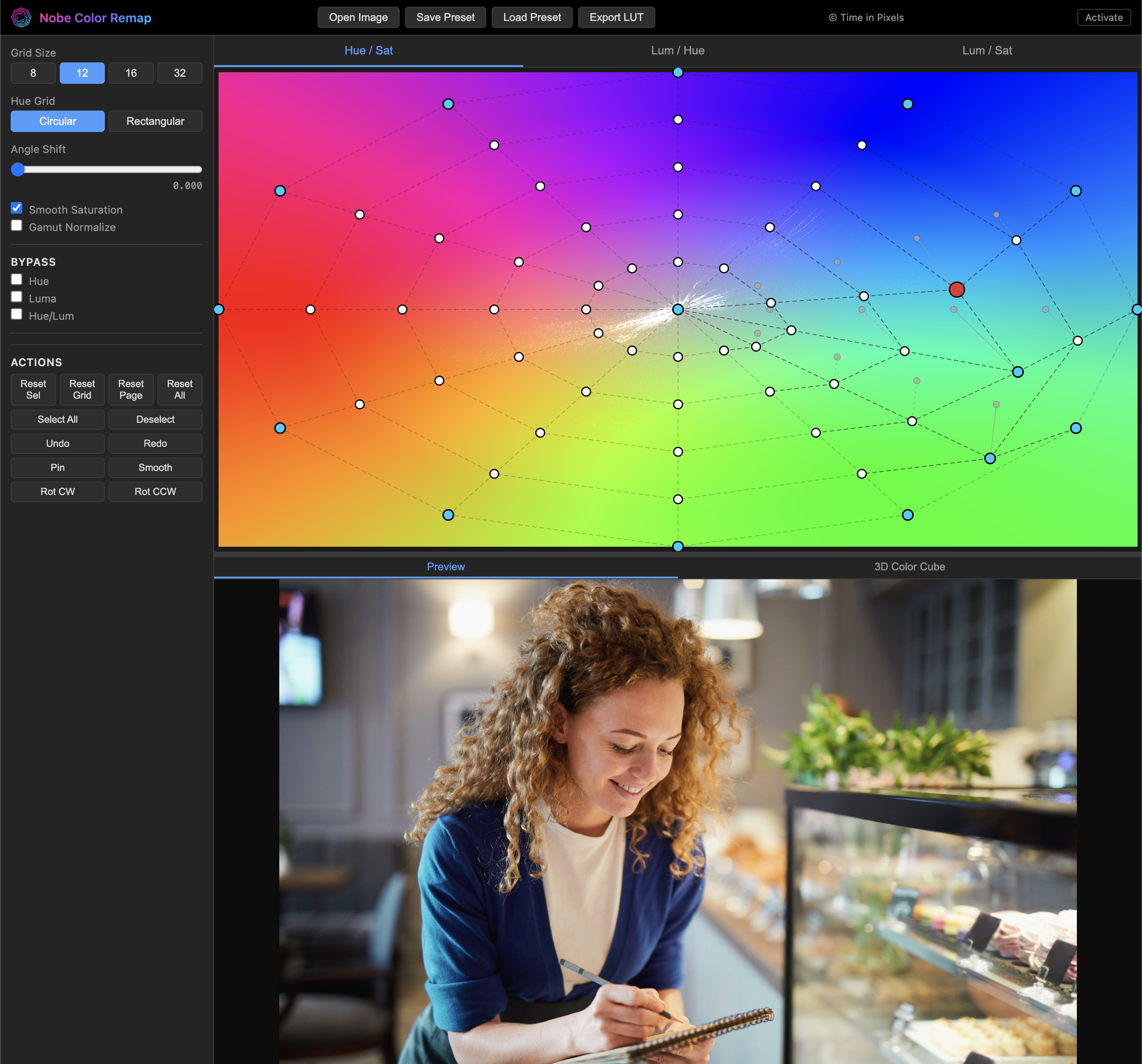
Web Color Remap App
The Web Color Remap App is a browser-based color grading tool that runs entirely in your browser with WebGL. It provides core hue, saturation, and luminosity remapping from Nobe Color Remap with no installation required.
Try it now: https://timeinpixels.com/nobe-color-remap-app/

Getting Started
Open the app at https://timeinpixels.com/nobe-color-remap-app/
Click Open Image or drag and drop an image anywhere in the app window
Drag control points on the grid to remap colors in real time
The app accepts image files supported by your browser (image/*). In practice this usually includes PNG and JPEG, plus additional formats depending on browser/OS codecs.
For performance, very large images are downscaled to a maximum side length of 4096 pixels.
Interface Overview
The interface is divided into three main areas:
Sidebar (left) — grid settings, bypass controls, and actions
Grid area (top right) — the color remapping grid with control points and color distribution overlay
Preview area (bottom right) — real-time image preview with zoom & pan
Toolbar
The top toolbar provides quick access to:
Open Image — load an image for preview
Save Preset — export the current remap state as a JSON preset file
Load Preset — import a previously saved preset
Export LUT — export the current color remapping as a 3D LUT file (.cube)
Grid Pages
The app provides three grid pages, accessible via the tabs above the grid area:
Hue / Sat
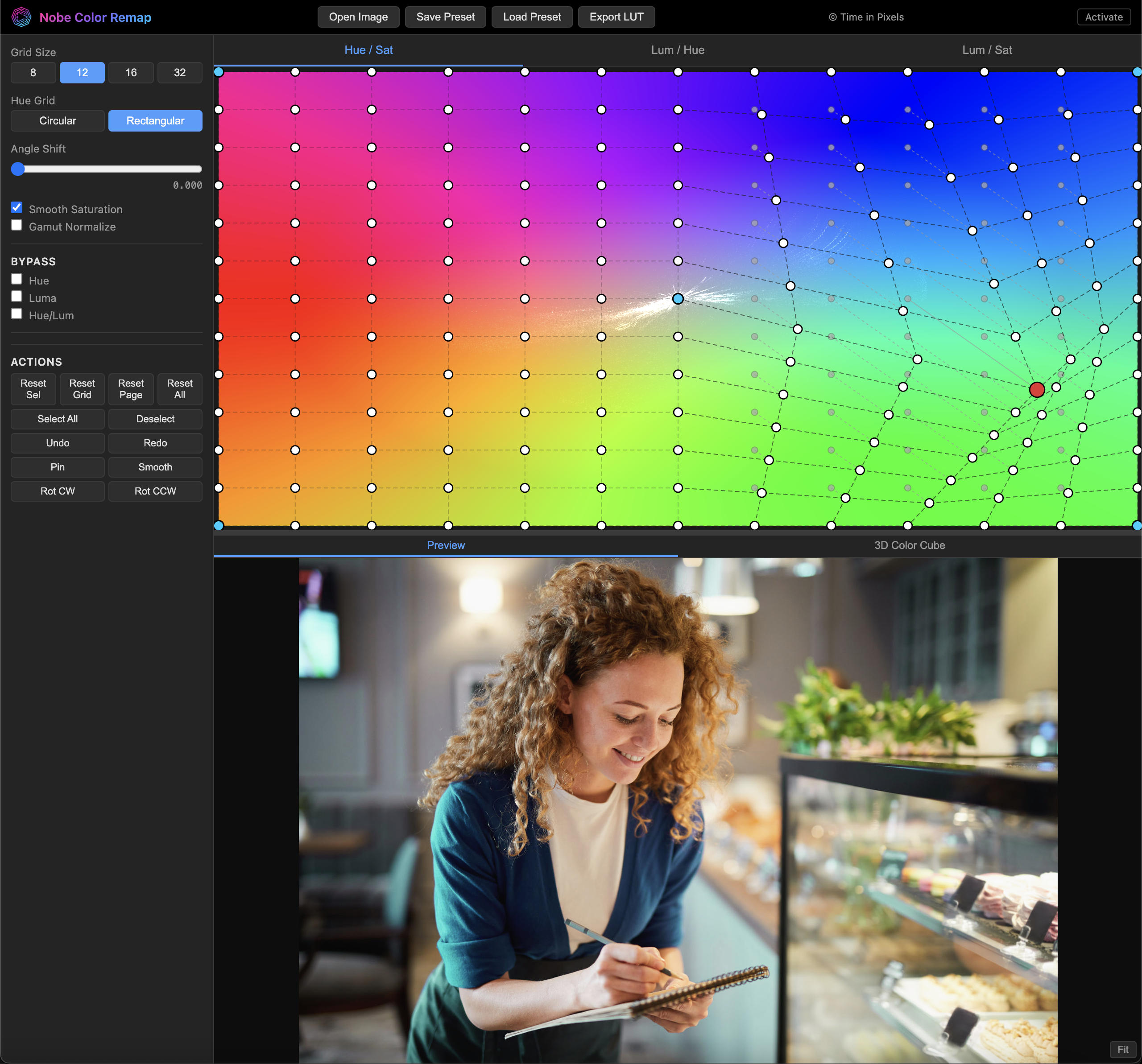
The Hue/Sat grid allows remapping of hue and saturation. Control points are arranged on a color wheel — dragging a point changes which color it maps to. The grid supports two modes:
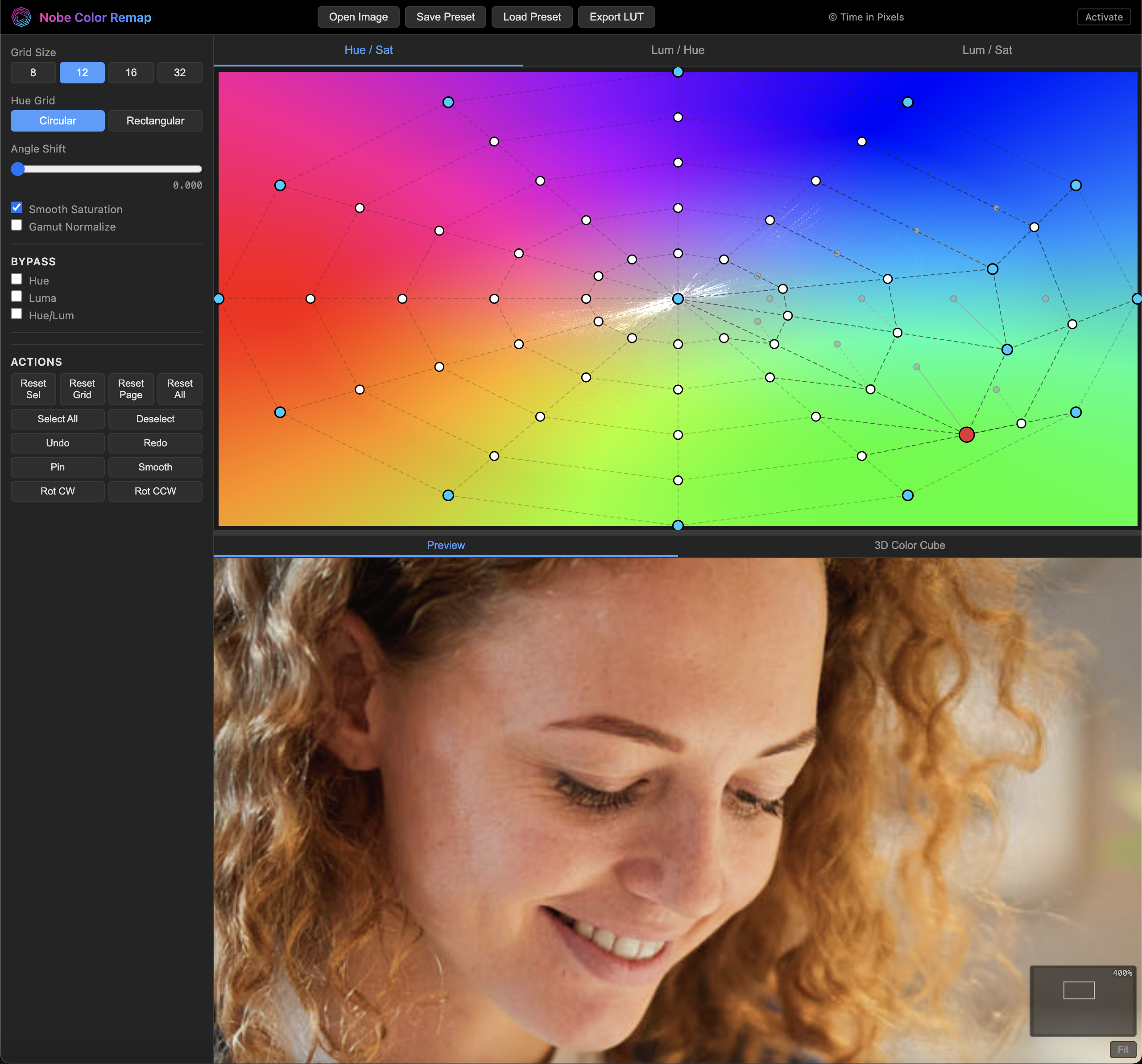
Circular — points arranged in concentric rings on the color wheel (default)
Rectangular — points arranged in a rectangular grid


Lum / Hue
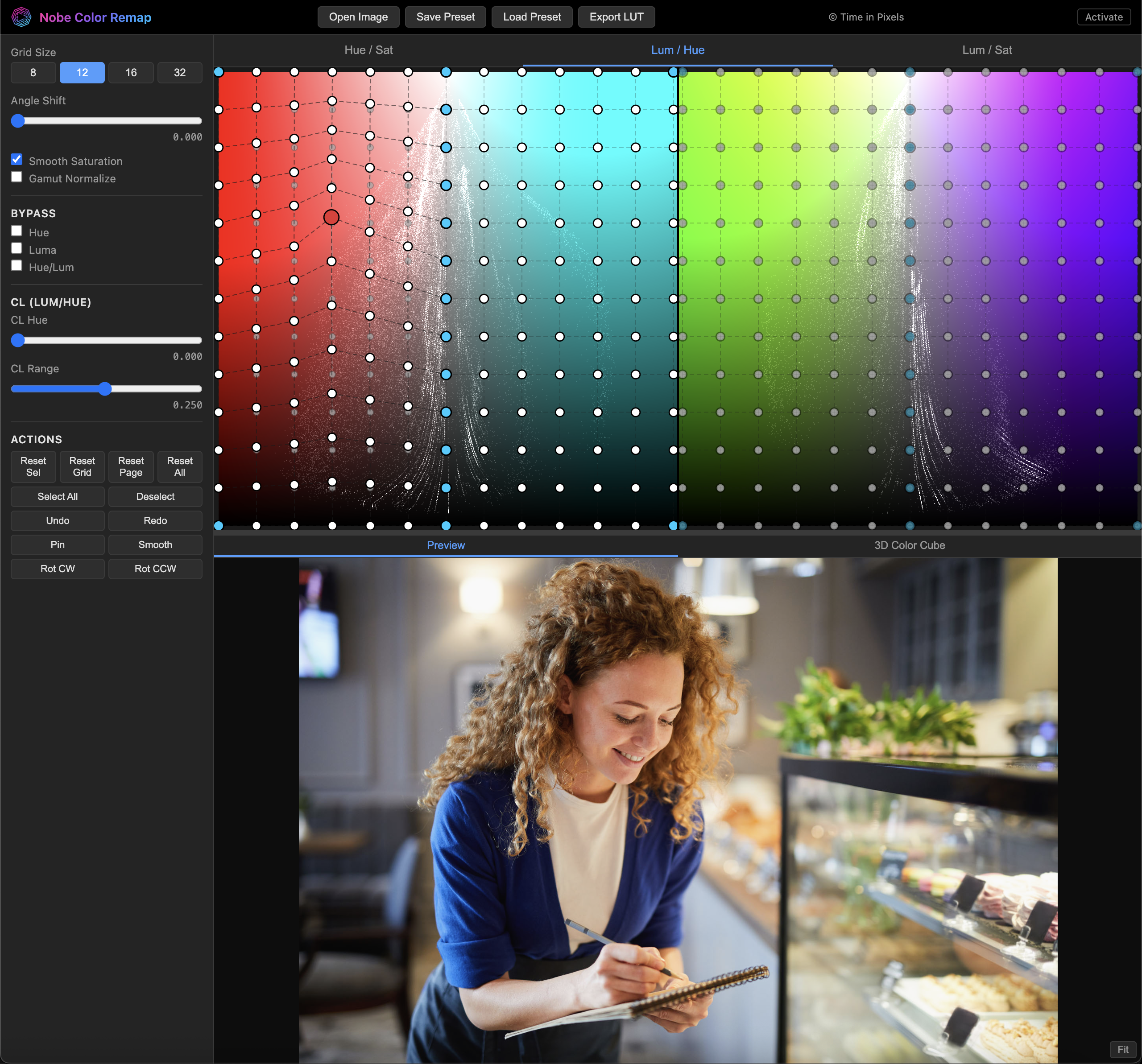
The Lum/Hue grid provides luminosity control per hue. It uses a dual-grid layout — two rectangular grids side by side, each controlling luminosity and saturation for different hue ranges. The CL Hue and CL Range sliders in the sidebar control which hue is being targeted.

Lum / Sat
The Lum/Sat grid provides luminosity control per saturation level. Like Lum/Hue, it uses a dual-grid layout. The HL Hue slider controls the target hue.
Control Points
Each grid consists of draggable control points connected by dashed lines:
White points — unmodified control points at their default positions
Blue points — pinned points that have been moved; their position is locked and won't be affected by neighbouring points
Red points — currently selected points
Point Operations
Click — select a point
Shift + click — toggle a point in/out of selection
Drag selected points — move selected point(s)
Box select — click and drag empty space to create a new selection
Shift + box select — add a box-selected group to the current selection
Alt while dragging points — precision movement (slower movement factor)
Color Distribution
When an image is loaded, the grid displays a color distribution overlay — small dots representing the colors present in the image, plotted on the grid. This helps you see exactly which colors will be affected when moving control points.
Sidebar Controls
Grid Settings
Grid Size — number of control points (8, 12, 16, or 32). Higher values give finer control.
Hue Grid — switch between Circular and Rectangular grid modes (Hue/Sat page only)
Angle Shift — rotate the hue wheel orientation
Options
Smooth Saturation — apply smooth interpolation in the saturation channel to reduce artifacts
Gamut Normalize — normalize the gamut to prevent out-of-range colors
Bypass
Hue — bypass the Hue/Sat grid processing
Luma — bypass the Lum/Hue grid processing
Hue/Lum — bypass the Lum/Sat grid processing
Actions
Reset Sel — reset selected points to their original positions
Reset Grid — reset the active sub-grid
Reset Page — reset both sub-grids on the current page
Reset All — reset all grids on all pages
Select All / Deselect — select or deselect all points
Undo / Redo — undo or redo grid changes
Pin — pin or unpin selected points
The UI may also show Smooth and Rot CW/Rot CCW buttons. Availability depends on the current build.
Preview
The preview area shows the image with the current color remapping applied in real time.
Zoom & Pan
Scroll wheel — zoom in/out centered on the cursor position
Middle mouse button drag (or Alt + left drag) — pan the image
Double-click or click the Fit button — reset zoom to fit
When zoomed in beyond 100%, a mini-map appears in the bottom-right corner showing your current viewport position within the full image, along with the zoom percentage.

Color Swatch
When hovering over the preview image, a color swatch indicator appears in the bottom-left corner showing the before and after color at the cursor position. This provides instant visual feedback of the color remapping.
3D Color Cube
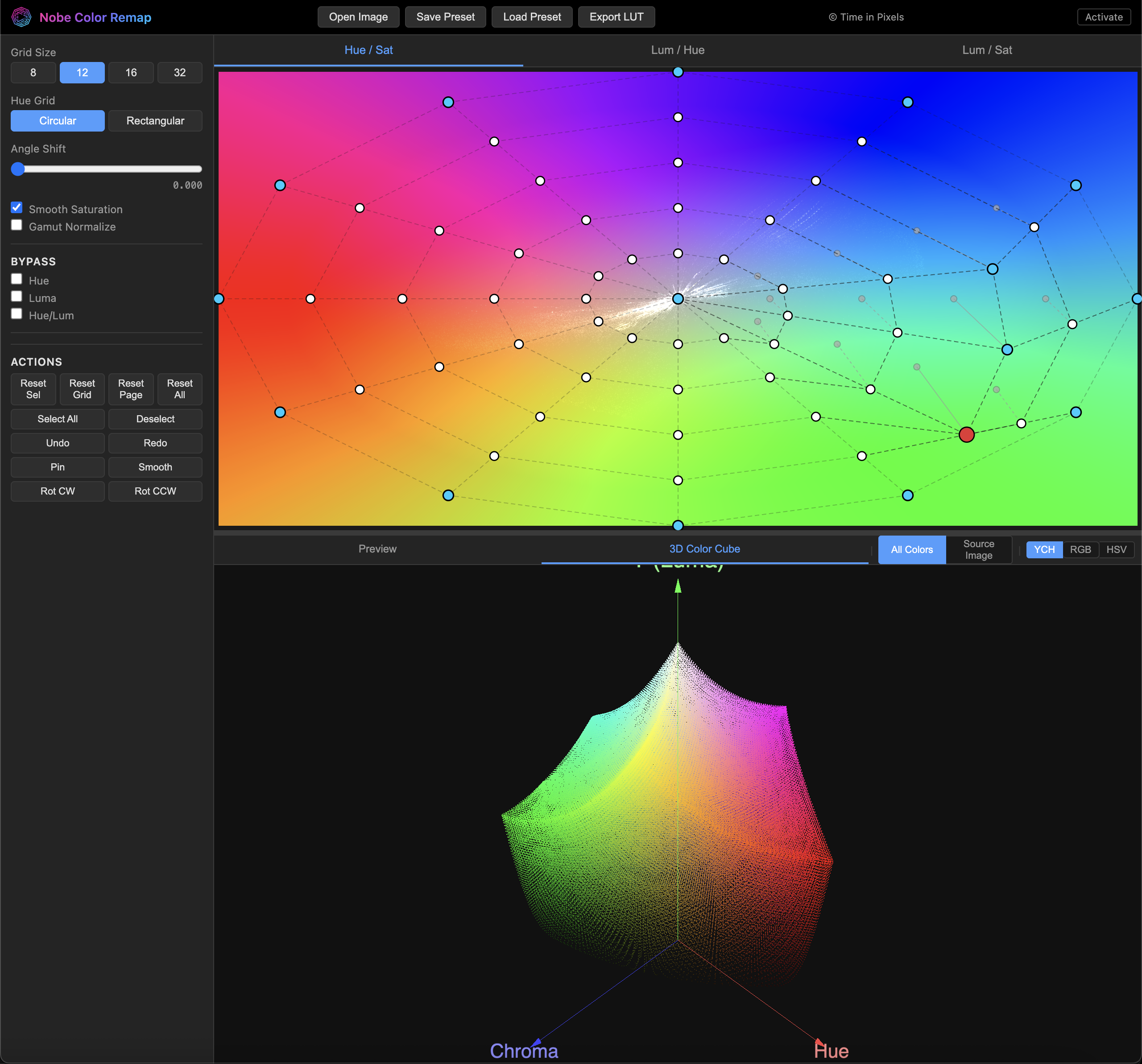
Switch to the 3D Color Cube tab in the preview area to visualize the color remapping as a 3D point cloud. This shows how colors are being shifted in 3D color space.

The 3D view supports:
Mouse drag — orbit the camera around the cube
Scroll wheel — zoom in/out
3D View Options
All Colors / Source Image — visualize all possible colors (HALD grid) or only the colors present in the loaded image
YCH / RGB / HSV — choose the 3D color space representation
LUT Export
The app can export the current color remapping as a 3D LUT file:
Export LUT — exports a .cube LUT file compatible with DaVinci Resolve, Premiere Pro, and other NLEs
The free version exports a 33³ LUT. A licensed version exports a higher quality 65³ LUT. Click Activate in the toolbar to enter your license key.
Presets
Save and load color grading presets as JSON files:
Save Preset — exports remap settings and grid data (all pages, control point positions, and pin states)
Load Preset — imports a previously saved preset file
Preset files do not include the loaded source image.
Keyboard Shortcuts
A
Select all points
D
Deselect all points
R
Reset selected points
Delete / Backspace
Reset selected points
Ctrl+Z / Cmd+Z
Undo
Ctrl+Shift+Z / Cmd+Shift+Z
Redo
Alt + drag points
Precision point movement
Middle mouse drag
Pan preview
Alt + left drag
Pan preview (alternative)
Double-click preview
Reset zoom to fit
State Persistence
The app automatically saves your current settings and loaded image in your browser (IndexedDB). When you return, your previous session is restored including:
All grid control point positions across all pages
Sidebar settings (grid size, angle shift, bypass states, etc.)
The loaded image
Currently, preview zoom/pan state is not restored.
License activation data is stored separately in browser local storage.
Privacy and Connectivity
Color processing happens locally in your browser while grading images.
Network access is required only for license verification when you click Activate.
Requirements
A modern desktop browser with WebGL support (Chrome, Firefox, Safari, Edge)
JavaScript and browser storage (IndexedDB/local storage) enabled
No installation or plugins required
Mouse or trackpad input recommended
Last updated