> For the complete documentation index, see [llms.txt](https://docs.timeinpixels.com/llms.txt). Markdown versions of documentation pages are available by appending `.md` to page URLs; this page is available as [Markdown](https://docs.timeinpixels.com/nobe-omniscope/outputs/ndi-output.md).
# NDI Output
{% hint style="info" %}
This feature requires a **Pro** license.
{% endhint %}
NDI® Output allows you to stream video from OmniScope over your local network using the NDI® (Network Device Interface) protocol. Any NDI®-compatible application or device on the same network can receive the stream.
## NDI® Input
NDI® input sources are automatically displayed in the **Connect to** dialog. No additional configuration is needed — OmniScope discovers all active NDI® senders on the network.
## Output Modes
NDI® output options are available in the **Options** menu or directly from the toolbar. There are two output modes:
### Source Pass-through
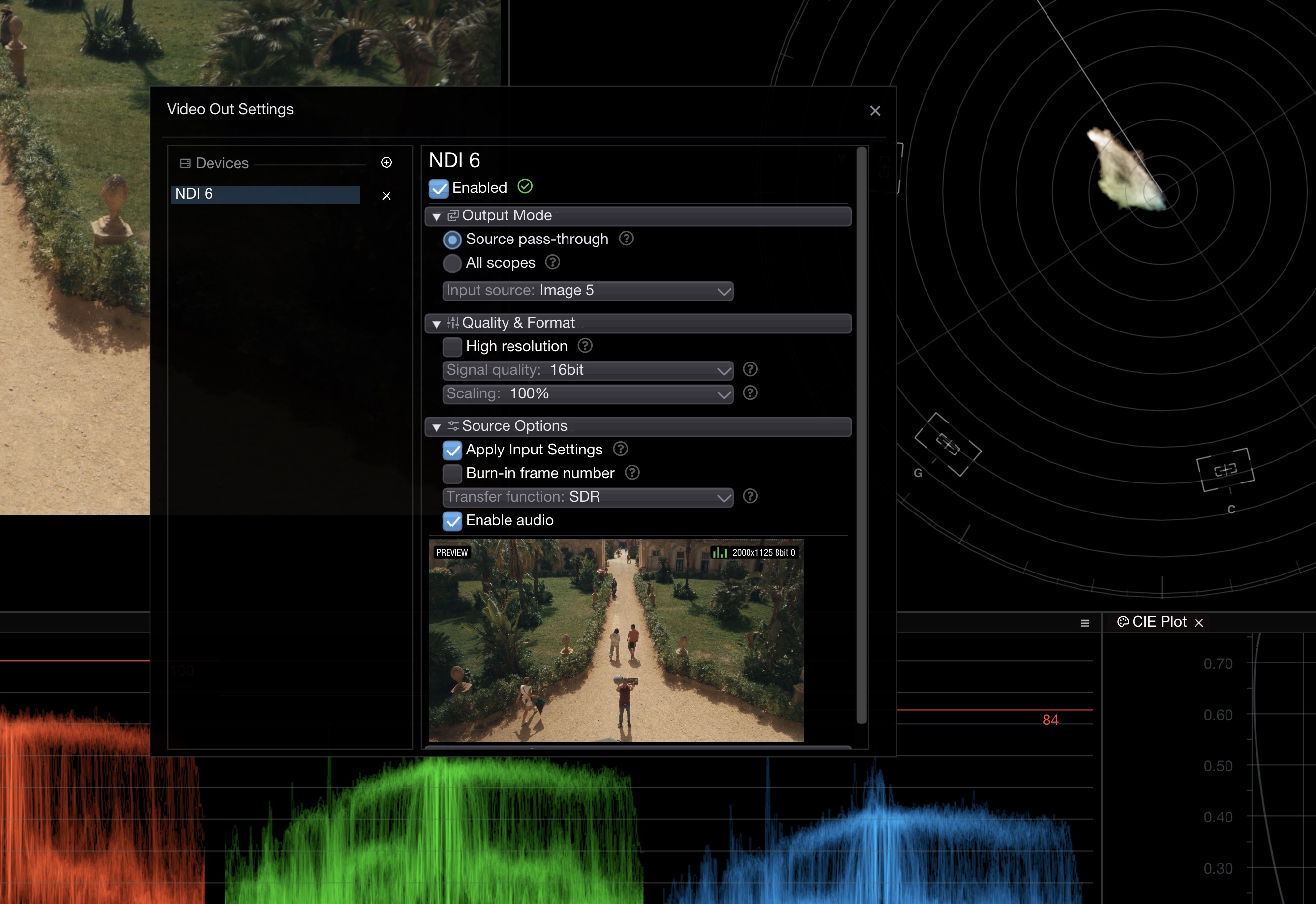
In this mode OmniScope forwards the input signal to the NDI® stream. When multiple sources are connected, select which one to output from the drop-down in the NDI® settings panel.
NDI® output — source pass-through
### All Scopes
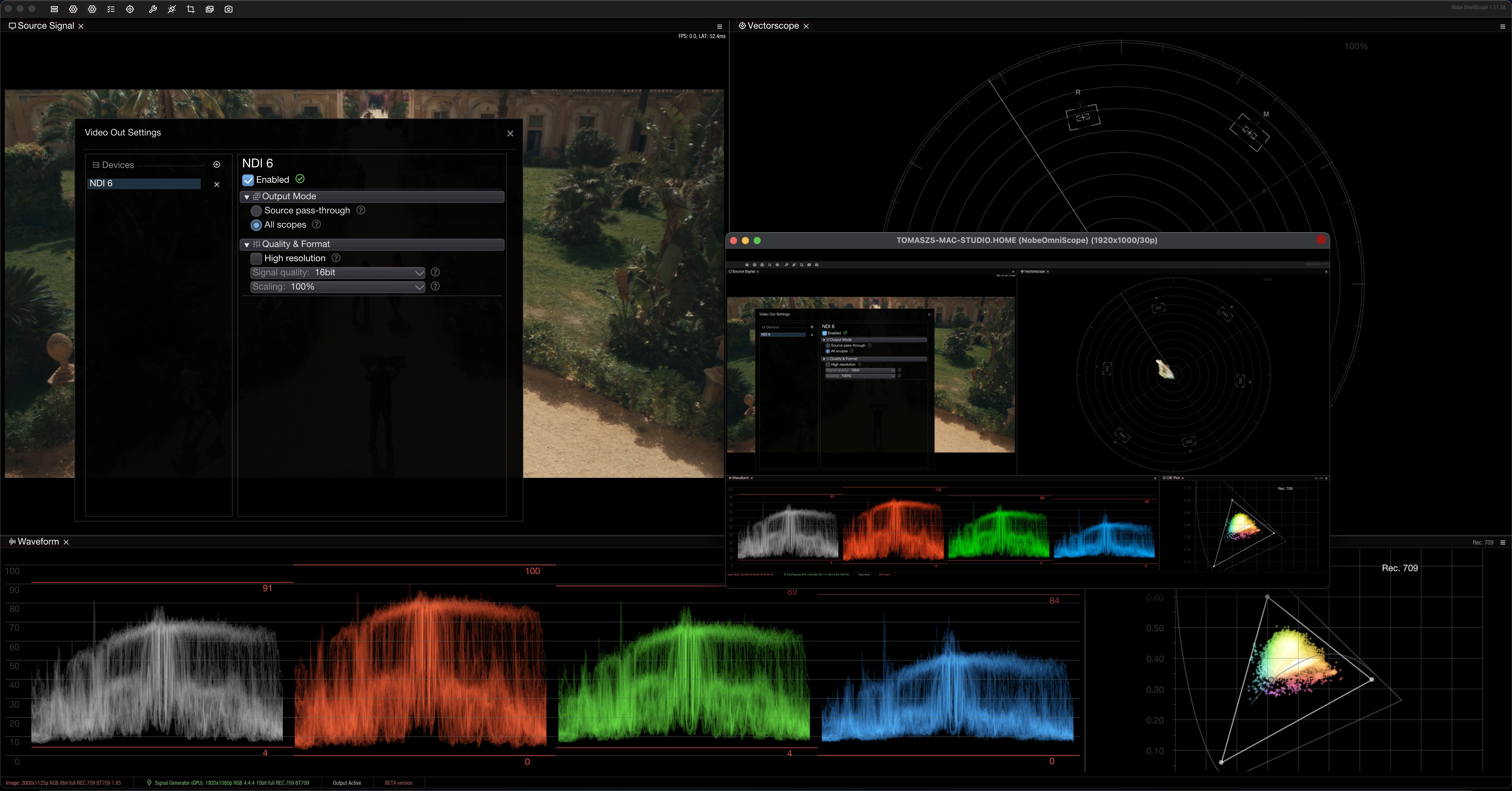
In this mode OmniScope sends the entire application view as an NDI® signal. The receiving party sees exactly what is displayed in the application — all scopes, overlays, and UI elements. This is useful for remote collaboration and review sessions.
NDI® output — all scopes mode
## NDI® Options
Use the settings panel to change:
* **Bit depth** — 8-bit or 16-bit signal
* **Image scaling** — reduce resolution to save bandwidth and lower latency
## Receiving the Stream
The NDI® stream appears as a source in any NDI®-compatible application, including OBS Studio, vMix, Wirecast, and other OmniScope instances.
## Performance Tips
* Use **wired Gigabit Ethernet** for reliable streaming at 1080p and above.
* NDI® is low-latency but not zero-latency — expect 1–3 frames of delay.
* Use descriptive stream names when running multiple OmniScope instances on the same network.
## Troubleshooting
* **Stream not visible** — verify both devices are on the same subnet and check firewall settings (NDI® uses mDNS for discovery).
* **Dropouts or poor quality** — switch from Wi-Fi to wired Ethernet, or reduce the output resolution in the NDI® settings panel.
* **NDI input/output options are missing on Windows** — install the latest **NDI Runtime**, then restart Windows. OmniScope now reports this explicitly when the NDI plugins are present but the runtime cannot be loaded.