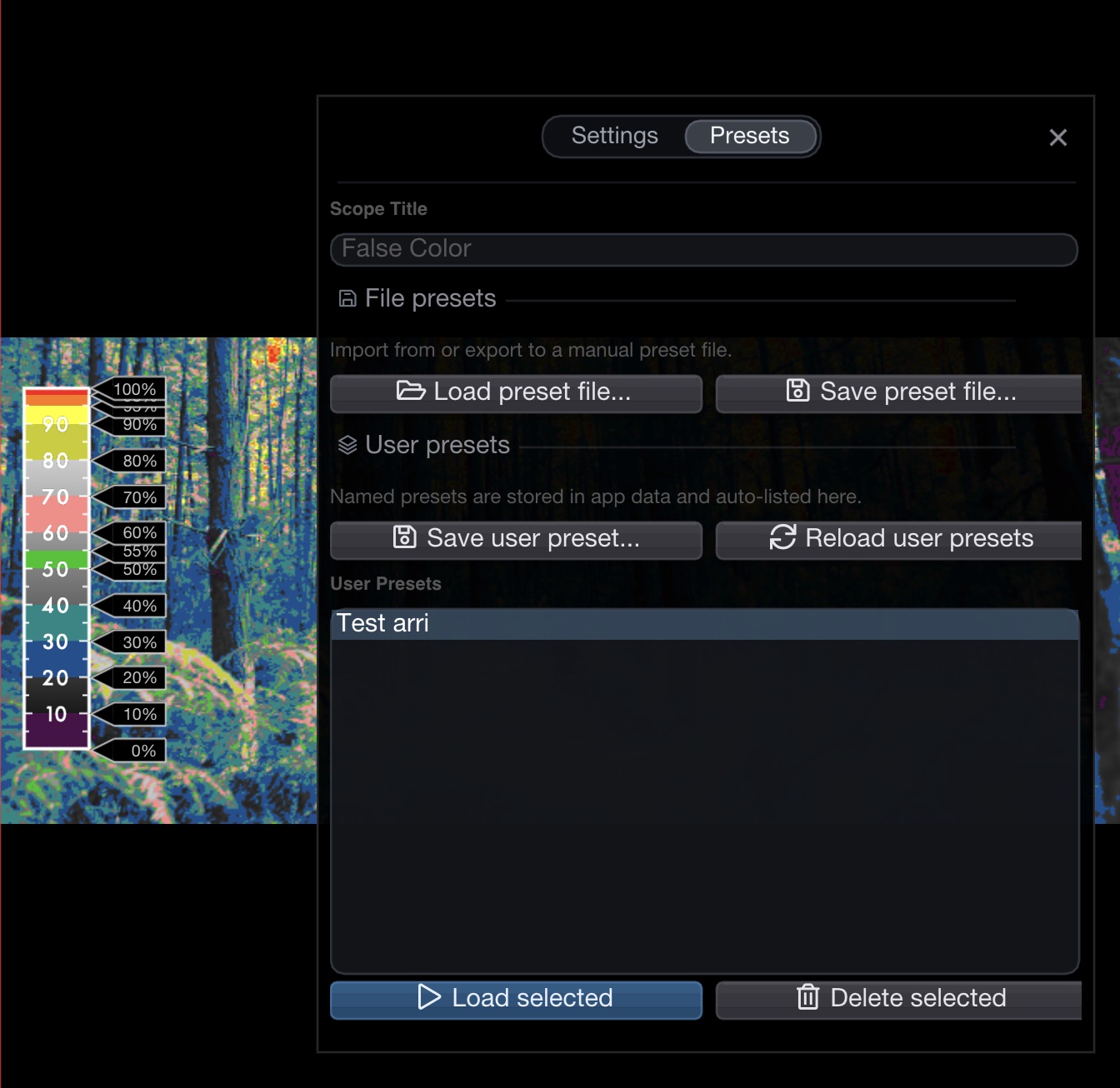
False Color
False Color maps brightness or saturation values to a colour overlay, making it easy to judge exposure at a glance. Every colour band and its threshold can be fully customised.

Display Modes
Luma
Maps luminosity to false colour (default). Luma coefficients follow the active colour space.
Saturation (HSL)
Maps HSL saturation to false colour
Saturation (HSV)
Maps HSV saturation to false colour
Hue
Maps hue angle to false colour
Built-in Presets
OmniScope ships with 21 built-in false colour presets covering common camera and monitor workflows:
R3D
Smooth — RED cameras (default)
R3D Legacy (v2.x)
Gradient — older RED workflow
Flanders
Gradient — professional reference
SmallHD (50x, 70x)
Gradient
SmallHD (DPx)
Gradient
ARRI
Sharp
Atomos
Sharp
Atomos 2
Sharp
BlackMagic Video Assist
Smooth
Zacuto
Sharp
VideoDevices PIX-E4
Smooth
VideoDevices PIX-E12
Smooth
Skintones
Smooth — skin tone reference
Highlights
Smooth — highlight range focus
Shadows
Smooth — shadow range focus
Saturation
Gradient — saturation mapping
Sony Log
Sharp — S-Log3 style
Canon Log
Sharp — C-Log3 style
RED Log
Sharp — IPP2 style
ARRI LogC4
Sharp — LogC4 curve
Universal Cine Log
Sharp — universal log standard

Each preset defines up to 15 colour stops with configurable transition sharpness — Smooth (continuous gradient), Sharp (hard colour cuts), or Gradient (mixed).
Preset Manager
The Preset Manager lets you browse, import, and organise false colour presets. It lists both built-in presets and user presets stored in the application support folder. You can load presets from .tfc4 / .fc4 files on disk, save custom presets, rename, or delete user presets.

User presets are stored in ~/Library/Application Support/NobeOmniScope/presets/ on macOS.
Scale
A colour ruler displays the active preset's mapping alongside the image. The scale type determines the unit labels:
IRE
Standard broadcast units
8-bit
0–255 levels
10-bit
0–1023 levels
mV
Millivolts (analogue)
ST 2084 (PQ)
HDR nit levels
HLG
HLG nit levels
Side Scale
Move the scale outside the picture area so it doesn't cover the image. Toggle Scale on side in the scope settings.

Opacity & Blur
Opacity (0–100 %) — blend the false colour overlay with the original image for a semi-transparent view.
Blur — soften the false colour output to reduce noise in the mapping.
Custom Range
Enable Custom Range to override the full preset with a simple two-colour gradient between a minimum and maximum level. Set the min/max percentages and pick the start and end colours.
Ranges
Available from version 1.11.33.
The Ranges tab in False Color settings provides numerical editing for every range point in the active preset. Each range boundary is displayed as a slider with its current IRE value. Cmd-click (macOS) or Ctrl-click (Windows) a slider to turn it into an edit box and type an exact value.

The Minimum and Maximum range points are locked to 0 and 100 IRE respectively. All other range boundaries can be adjusted freely within their allowed range (constrained by neighbouring points).
This is the same set of range points you can drag directly on the false colour scale — the Ranges tab simply gives you precise numerical control.
Color Picker
Hold Alt and click on the image to sample a colour and create a colour pin. Pins display the sampled value in your chosen format:
RGB 8-bit
R:255 G:128 B:64
HEX
#FF8040
RGB Float
1.0, 0.5, 0.25
Zoom & Pan
Scroll to zoom in (up to 15×) and drag to pan across the image. A zoom preview thumbnail appears in the corner showing the full frame with a yellow rectangle indicating the current viewport. The preview can be toggled off in settings.
LUT Export
Export the current false colour mapping as a standard 3D LUT (.cube) or VLT format for use in external applications or on-set monitors.
Keyboard Shortcuts
Assign shortcuts via the Action Editor to any of the actions below.
StreamDeck Actions
Toggle Solo
Fullscreen the False Color scope
Pause
Freeze the scope at the current frame
Last updated