> For the complete documentation index, see [llms.txt](https://docs.timeinpixels.com/llms.txt). Markdown versions of documentation pages are available by appending `.md` to page URLs; this page is available as [Markdown](https://docs.timeinpixels.com/nobe-omniscope/live-pack-add-on/livegrade-integration.md).
# Livegrade integration
{% hint style="info" %}
**Requirement** — LiveGrade integration requires **Pomfort LiveGrade 7.1** or later.
{% endhint %}
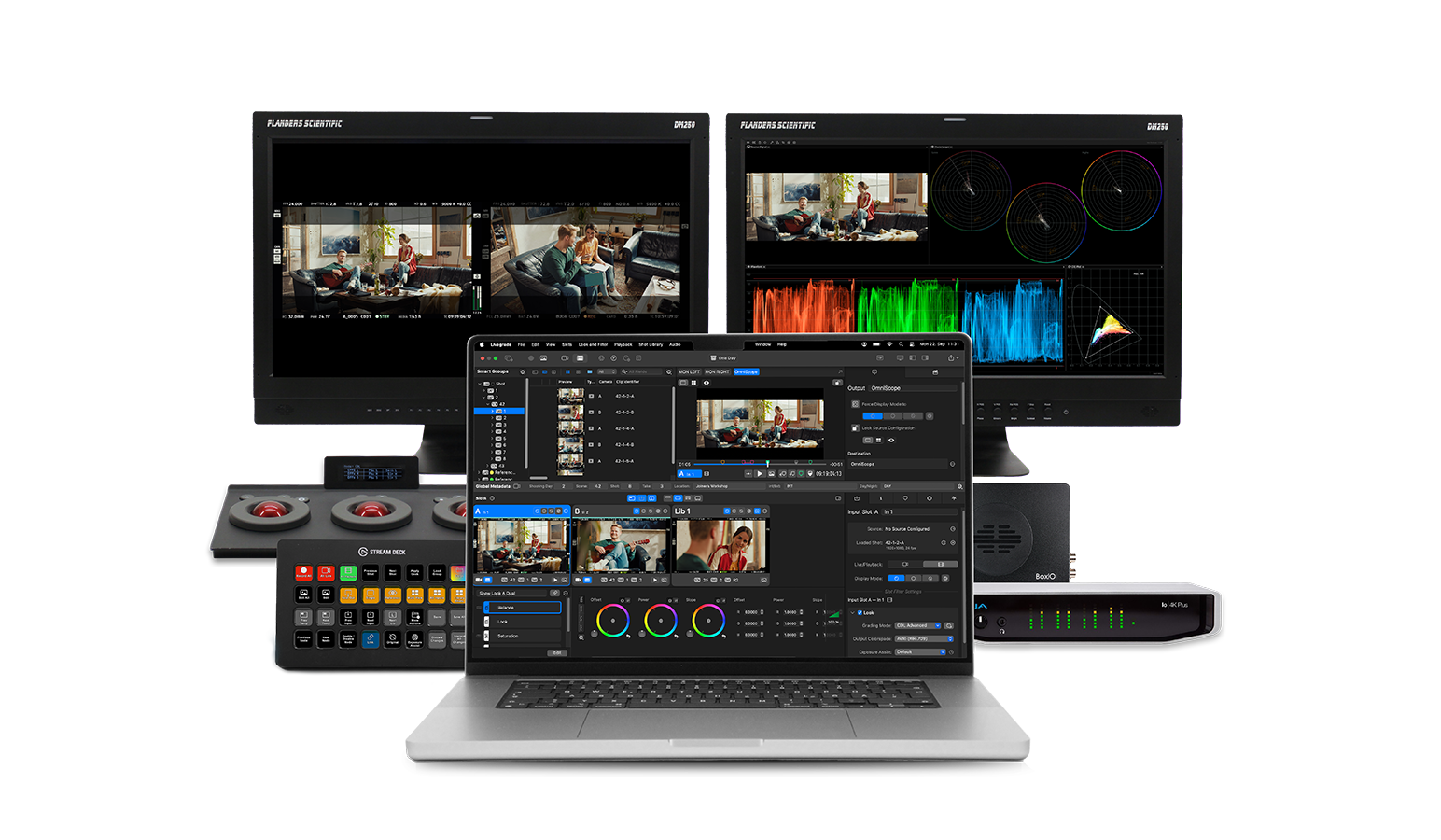
Live Pack includes native integration with **Pomfort Livegrade**, enabling you to monitor color-graded feeds directly—without the need for SDI loopbacks or secondary routing. This software-only approach removes latency and simplifies signal pipelines, letting you view exactly what’s being adjusted in real-time.
Livegrade with 7 OmniScope instances
> “Previously, I had to route a separate SDI signal from Livegrade into OmniScope. Now I can monitor it in software with no extra gear and zero delay.”
>
> — Sean Sweeney, DIT
{% embed url="" %}
## Connecting Livegrade to OmniScope
1. Open both **Livegrade** and **OmniScope** on the same machine.
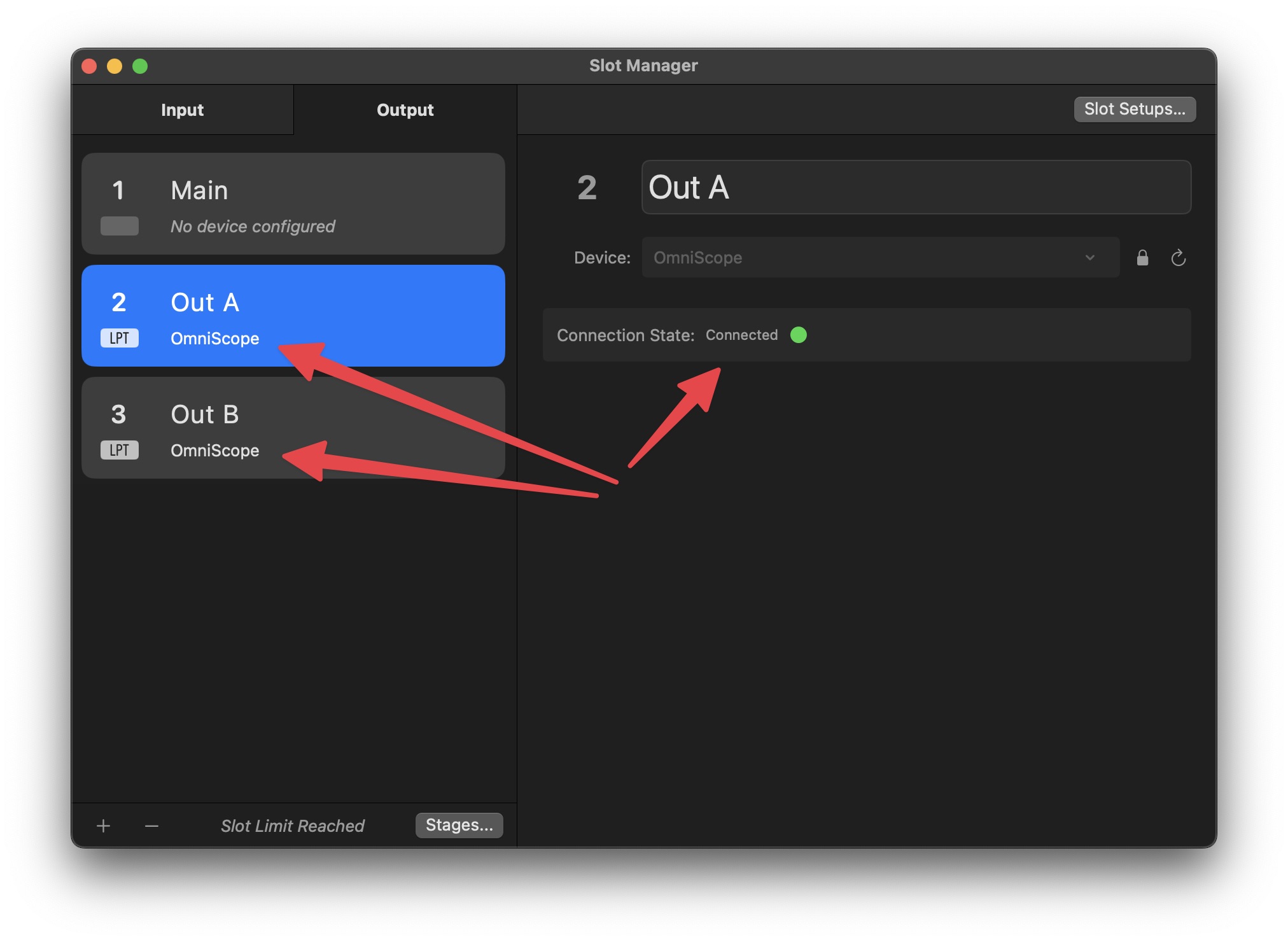
2. In Livegrade, open the **Slot Manager** and switch to the **Output** tab. Add one or more output slots with the device set to **OmniScope**. Each slot appears as a separate output (e.g. Out A, Out B). The **Connection State** should show **Connected** when OmniScope is running.
Livegrade Slot Manager with two OmniScope outputs connected
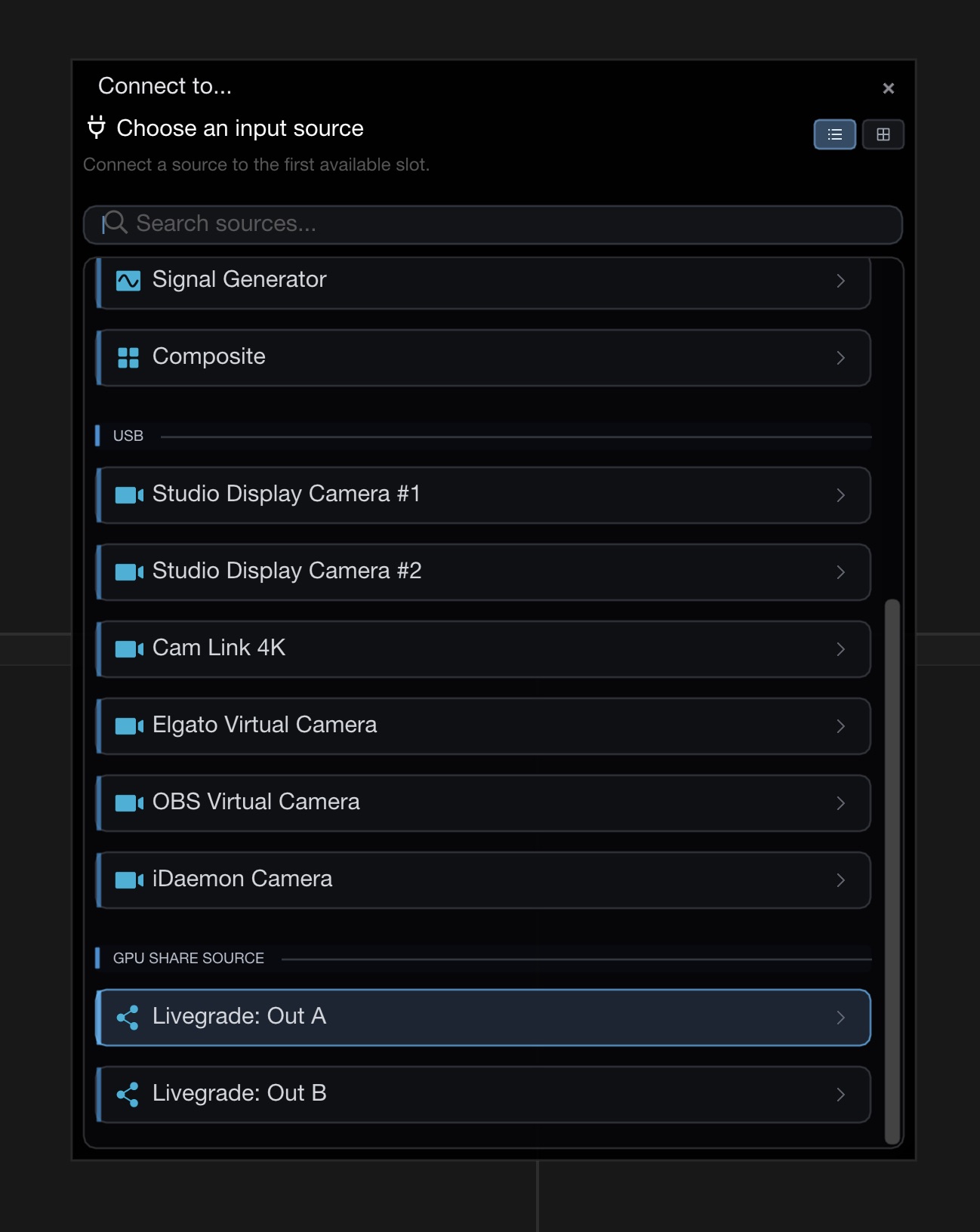
3. In OmniScope, open the source picker. The Livegrade outputs are automatically detected and listed under the **GPU Share Source** section (e.g. "Livegrade: Out A", "Livegrade: Out B"). OmniScope keeps one picker entry per Livegrade output slot and refreshes that entry if Livegrade re-announces the slot after a restart or output toggle. Select an entry to start monitoring.
## Workflow tips
### Monitoring the original (ungraded) image
Use Livegrade's **"Force Display Mode to"** feature on an OmniScope output to send the original camera image to OmniScope for analysis, while continuing to view graded images on your client monitors. This is useful when you need accurate exposure or color-balance readings from the unprocessed signal.
### Removing HUD overlays from analysis
If your camera feed includes burned-in metadata or HUD elements, apply a **crop filter** on the Livegrade output before it reaches OmniScope. This prevents on-screen overlays from affecting waveform, vectorscope, or histogram readings.
### Additional output streams
The standard integration provides **2 output streams** from Livegrade to OmniScope. If your workflow requires more streams, extended configurations are available — contact to discuss your use case.
***
{% hint style="info" %}
Pomfort also maintains their own documentation for this integration on their knowledge base: [Pomfort KB — OmniScope integration](https://kb.pomfort.com/livegrade/omniscope/)
{% endhint %}