Snapshots
Snapshots let you freeze a frame from any live input and use it as a reference for comparison, analysis, or documentation. They are central to colour matching, QC review, and before/after workflows.

Taking a Snapshot
Toolbar
Click the Take Snapshot button
Keyboard
⌥H (macOS) / Alt+H (Windows) — pause all scopes, then grab
Keyboard
⌥B (macOS) / Alt+B (Windows) — toggle snapshot display
Keyboard
⇧L (macOS) / ⇧L (Windows) — blend last snapshot
Context menu
Right-click an input source > Grab Snapshot
StreamDeck / Action Editor
Use the Grab Snapshot action
Snapshots are saved as image files to ~/Library/Application Support/NobeOmniScope/snapshots/ (macOS) or the equivalent AppData folder (Windows).
Viewing Snapshots
Snapshot Scope
The Snapshot scope behaves like a Source Signal viewer until a frame is captured. Once a snapshot is taken, it displays the frozen frame. You can assign a snapshot as the reference source for any other scope — waveform, vectorscope, histogram, etc. — for direct comparison.
See Snapshot Scope for scope-specific settings.
Snapshot Thumbnails
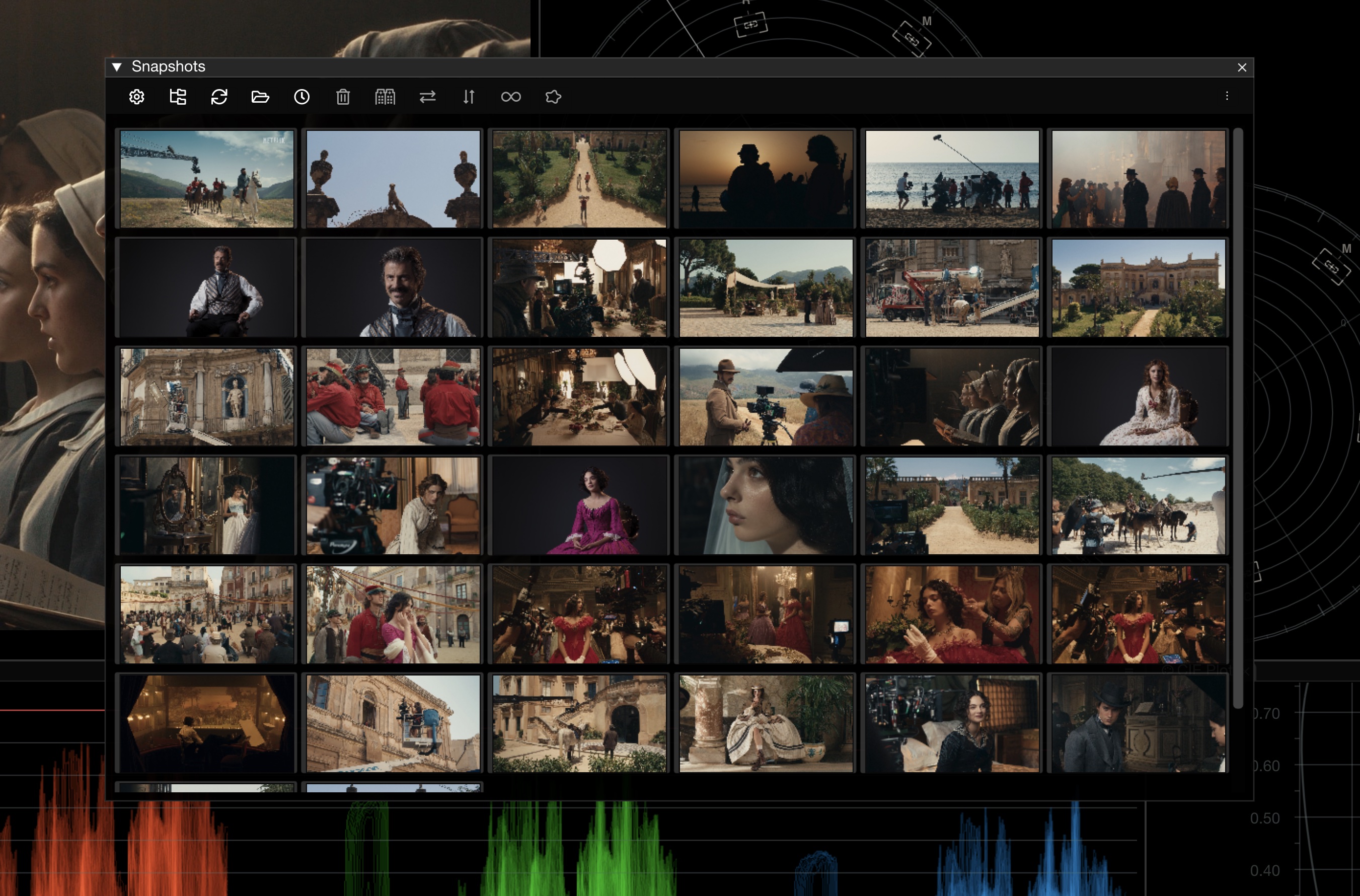
The snapshot panel shows thumbnails of all captured snapshots. You can:
Click a thumbnail to load it as the active reference
Drag and drop a snapshot onto any scope to assign it as that scope's source
Organise snapshots into sub-folders
Sort by newest or oldest
Resize thumbnails using the thumbnail size control
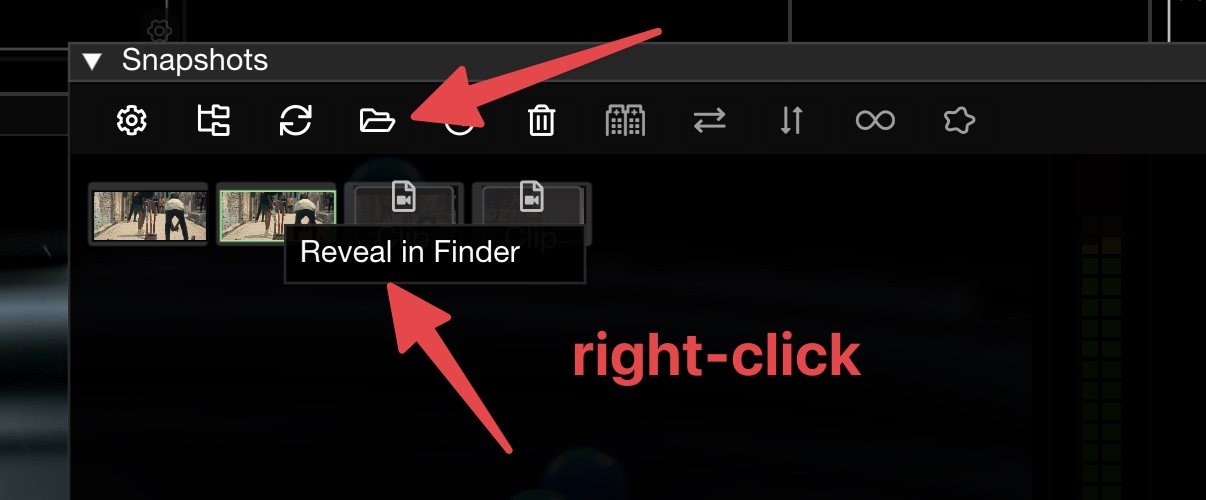
Delete individual snapshots or clear all snapshots in the current directory
Compare Modes
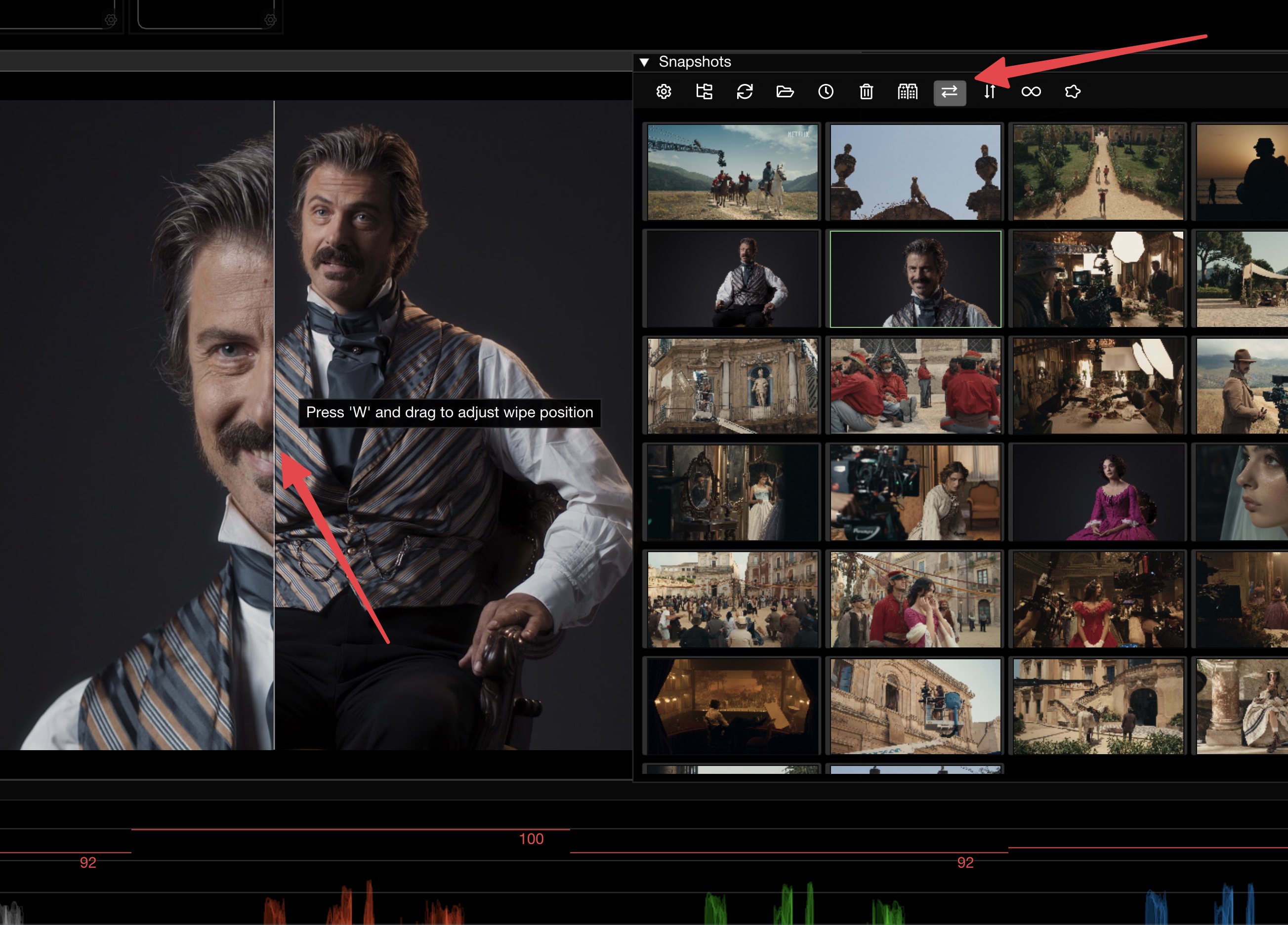
Split / Wipe
Overlay the snapshot and live signal side by side with a horizontal or vertical wipe. Drag the wipe position to compare different areas of the frame. Wipe overlays include tooltips for easier control.

Blend
Blend the snapshot transparently over the live signal using a configurable alpha value. Adjust blend strength by holding W and dragging the mouse in the viewer.
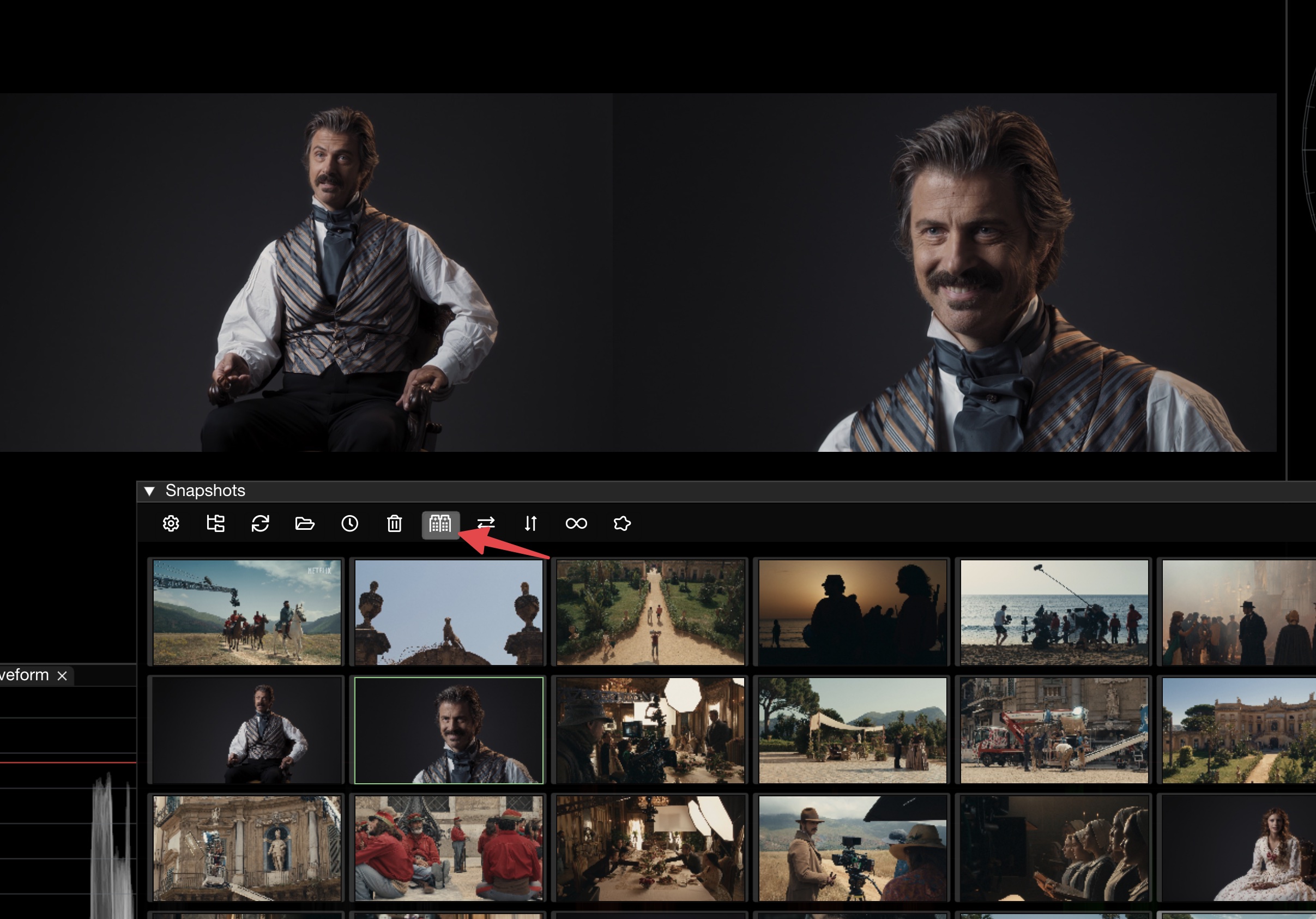
Side by Side
View the snapshot and live signal next to each other in separate panels.

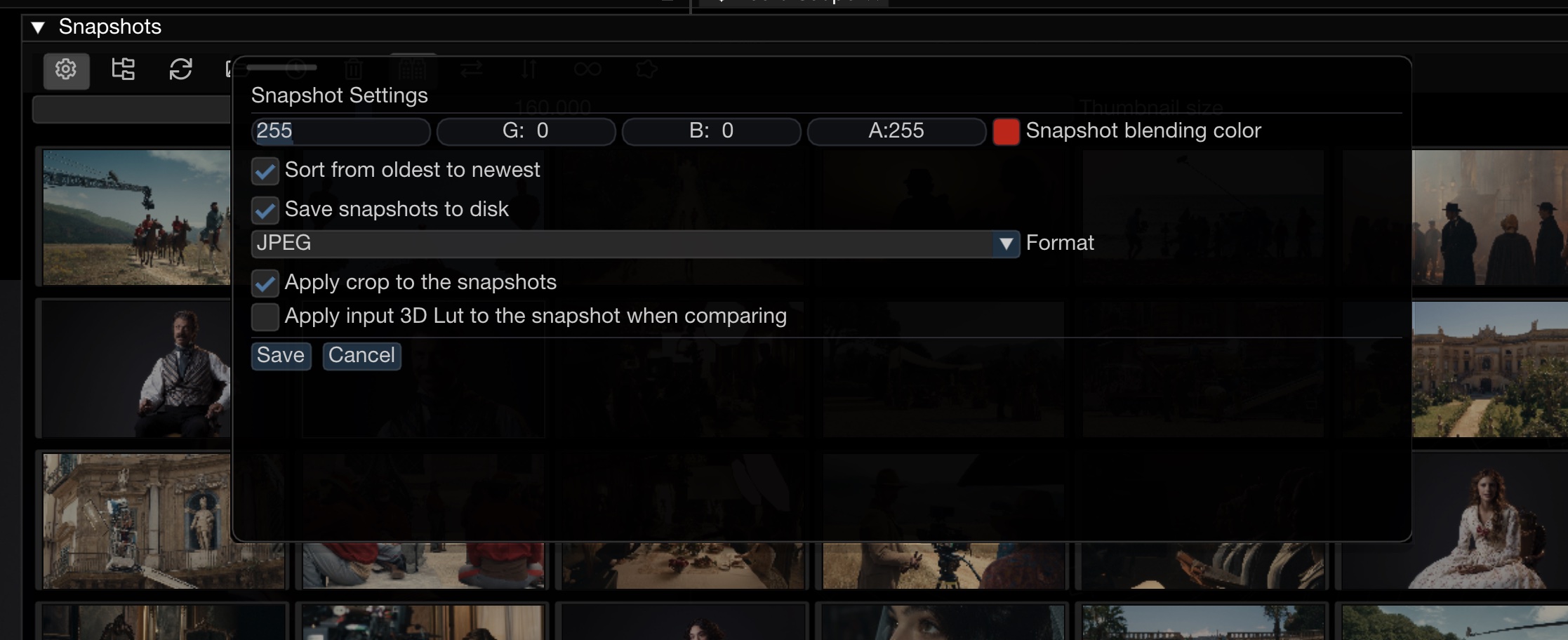
Snapshot Settings

Snapshot Folder
Choose a custom folder where snapshot files are saved. Use the folder picker button to browse, or type a path directly. Defaults to ~/Library/Application Support/NobeOmniScope/snapshots/ (macOS) / the equivalent AppData path (Windows). (1.11.30+)
PNG Compression
Set the compression level for saved PNG snapshots (0 = fastest/largest, 9 = slowest/smallest). Higher values reduce file size at the cost of write time. (1.11.30+)
Apply input 3D LUT in split mode
Apply the input's 3D LUT to the snapshot when comparing in split mode (1.11.17+)
Take snapshots without crop
Capture the full frame even when crop is active (1.11.9+)
Blend alpha
Set the default transparency for blend mode (1.11.13+)
Per-Input Snapshots
Each input slot maintains its own snapshot. When multiple sources are connected, you can grab and manage snapshots independently for each input. Snapshots are stored per-source and restored when switching between inputs or loading layouts.
Grab Snapshots for All Inputs
Use the Grab Snapshots for all inputs action to capture a snapshot from every connected input simultaneously — useful for multi-camera workflows where you need a reference frame from each camera at the same moment.
Window Snapshots
In addition to input snapshots, you can capture a screenshot of the entire OmniScope window — all scopes, overlays, and UI — using the Grab Window Snapshot action (⌘B on macOS / Ctrl+B on Windows).
Auto-Snapshot
Auto-Snapshot requires a Live Pack license.
Automatically capture snapshots at a configurable interval — from minutes down to milliseconds. This is useful for continuous signal monitoring, temporal comparison, or set documentation.
See Auto-Snapshot for details.
Snapshot as Source
Snapshot as Source requires a Live Pack license.
Promote any snapshot to a live source for use in scope comparisons and overlays, enabling side-by-side evaluation of live signal vs. static references without switching applications.
See Snapshot as Source for details.
Keyboard Shortcuts
⌥B
Alt+B
Toggle snapshot display
⇧L
⇧L
Blend last snapshot
⌘B
Ctrl+B
Grab window snapshot
Related
Auto-Snapshot (Live Pack)
Snapshot as Source (Live Pack)
Last updated