> For the complete documentation index, see [llms.txt](https://docs.timeinpixels.com/llms.txt). Markdown versions of documentation pages are available by appending `.md` to page URLs; this page is available as [Markdown](https://docs.timeinpixels.com/nobe-omniscope/features/overlays.md).
# Overlays
Overlays let you display PNG images on top of the **Source Signal** viewer — useful for safe-area guides, framing references, branding, or composition grids.
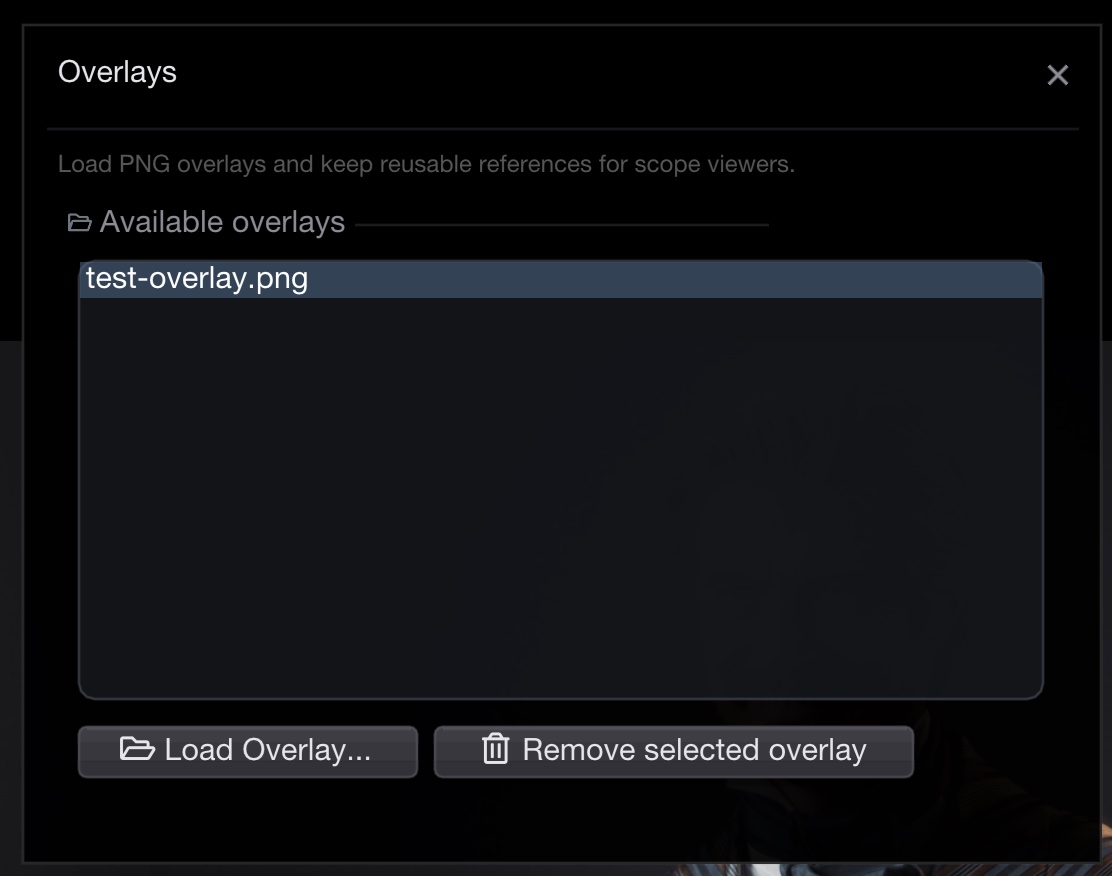
Overlays window
## Opening the Overlays Window
Open the window from the menu:
**Options > Overlays**
## Loading an Overlay
1. Click **Load Overlay…** in the Overlays window
2. Select a **PNG** file (alpha transparency is supported)
3. The overlay appears in the list and is displayed on top of the Source Signal viewer
You can load multiple overlays and switch between them.
## Removing an Overlay
Select an overlay in the list and click **Remove selected overlay**.
## Selecting an Overlay in Source Signal Settings
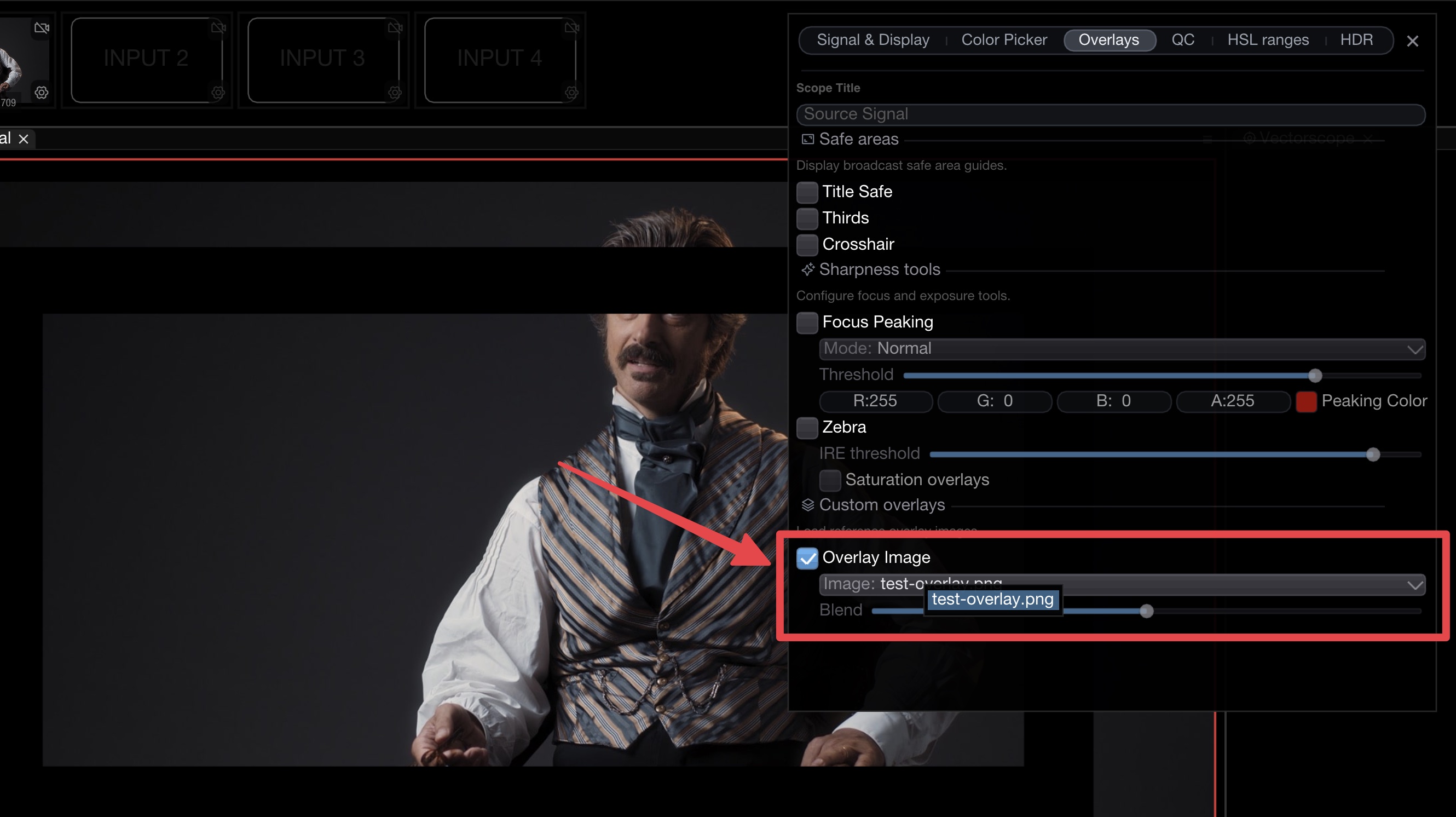
You can also select which overlay to display directly from the **Source Signal** scope settings, without opening the Overlays window.
Overlay selection in the Source Signal scope settings
## Built-in Overlays
The Source Signal scope also includes built-in overlay options accessible from the scope's context menu:
* **Title safe** — broadcast-standard safe area guides
* **Thirds** — rule-of-thirds grid
* **Crosshair** — center crosshair
## Tips
* Use **transparent PNGs** — the alpha channel controls which parts of the overlay are visible
* Design overlays at the same resolution as your source for pixel-perfect alignment
* Overlays are saved in your layout, so they persist across sessions
* Useful for letterbox guides, watermark placement, and aspect ratio markers
## Related
* [Source Signal](/nobe-omniscope/scopes/source-signal.md)