> For the complete documentation index, see [llms.txt](https://docs.timeinpixels.com/llms.txt). Markdown versions of documentation pages are available by appending `.md` to page URLs; this page is available as [Markdown](https://docs.timeinpixels.com/nobe-omniscope/features/color-key.md).
# Color Key
The Color Key window lets you isolate a range of colors in the input signal. Pixels outside the selected range are displayed as black in the Source Signal viewer, making it easy to spot specific tones or check color separation.
Open it from the menu bar (**Options > HSV/RGB Key**) or assign the **Toggle HSV Key window** action to a StreamDeck button or keyboard shortcut.
## HSV Mode
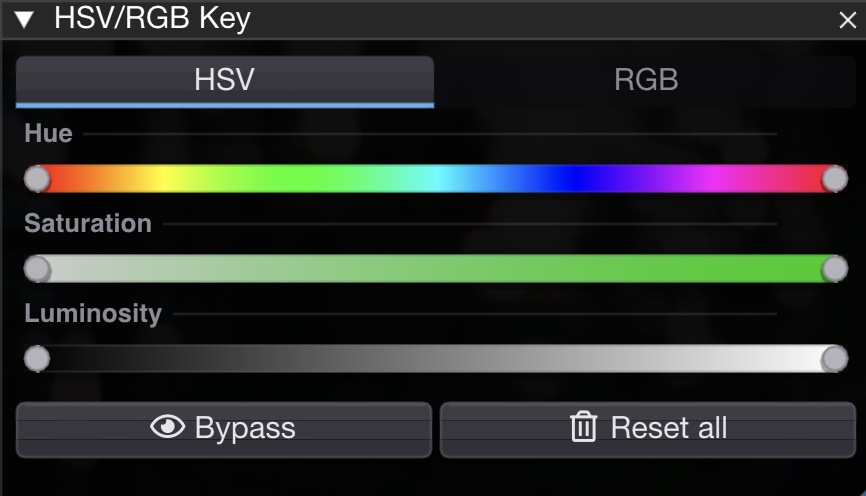
Narrow the selection by **Hue** (0–360°), **Saturation** (0–100 %), and **Luminosity** (0–100 %). Each channel has a visual range slider with a color gradient — drag the handles to define the start and end values.
HSV key mode — isolating a hue/saturation/luminosity range
## RGB Mode
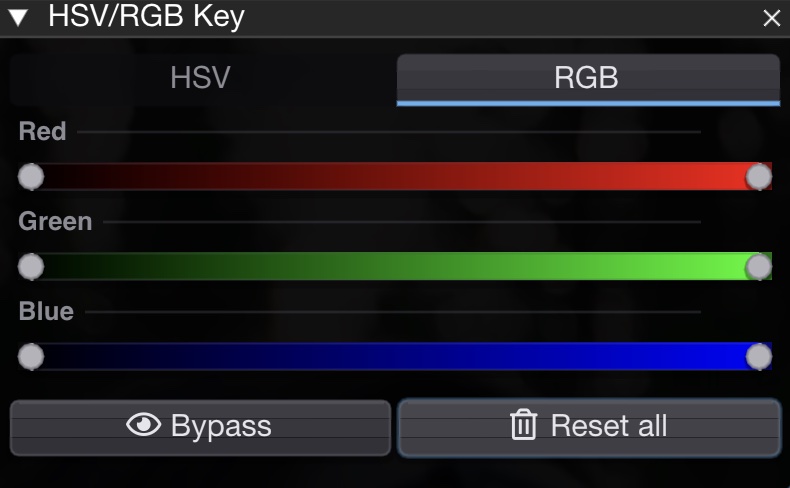
Select a range for each **Red**, **Green**, and **Blue** channel independently (0–100 %). Useful for isolating specific signal levels per channel.
RGB key mode — isolating per-channel ranges
## Controls
| Button | Description |
| ------------- | ------------------------------------------------------------------------------------------------------ |
| **Bypass** | Temporarily disable the key without resetting the ranges. The button highlights when bypass is active. |
| **Reset all** | Reset all ranges to full (no filtering) and disable bypass. |
The key operates on the currently selected input slot. If no input is selected, the default (first connected) input is used.