> For the complete documentation index, see [llms.txt](https://docs.timeinpixels.com/llms.txt). Markdown versions of documentation pages are available by appending `.md` to page URLs; this page is available as [Markdown](https://docs.timeinpixels.com/nobe-omniscope-for-ipad/scopes.md).

# Scopes

Tap a cell's title to select a scope. Open its ellipsis menu for common settings; where present, **More Scope Settings** opens additional controls. Each cell keeps independent scope settings.

## Available scopes

| Scope              | Use it for                                          | Useful controls                                                                                                                    |
| ------------------ | --------------------------------------------------- | ---------------------------------------------------------------------------------------------------------------------------------- |
| **Source Signal**  | Inspect the picture and sample individual colors    | Channels, brightness, zebras, Color Pins, framing, Signal Info, HDR preview, and Live Pack's White-Balance Probe and Focus Peaking |
| **Waveform**       | Inspect levels across the image                     | Luma/RGB display modes, RGB Parade, scales, reference lines, peak labels, trace filtering and vertical zoom                        |
| **Vectorscope**    | Inspect hue and saturation                          | Graticules, targets, skin-tone guides, zoom and **Split Low / Mid / High**                                                         |
| **Histogram**      | Inspect the distribution of signal levels           | Channel/display choices, orientation, trace appearance and reference lines                                                         |
| **CIE Plot**       | Inspect chromaticity against color-space boundaries | Coordinate/display settings, gamut overlays, white point and custom primaries                                                      |
| **False Color**    | View exposure regions as colors                     | Exposure display controls, legend and image framing                                                                                |
| **Hectorscope**    | Explore the signal in a rotatable 3D view           | Surface/point-cloud rendering, height, appearance, rotation and tilt                                                               |
| **Goniometer**     | Inspect stereo relationship and correlation         | Stereo-pair selection, trace styling and peak hold                                                                                 |
| **Loudness Meter** | Measure program loudness                            | Momentary, short-term and integrated LUFS, loudness range, true peak, pause and reset                                              |
| **Skin Tone**      | Isolate colors within a chosen skin-tone range      | HSV/YCbCr detection, hue/chroma windows, saturation/luminosity limits and overlays                                                 |
| **Neutral**        | Inspect areas close to neutral                      | Neutral threshold, luminosity limits and highlighting                                                                              |

![Source Signal with a Color Pin, Vectorscope, Waveform, Hectorscope, CIE Plot and False Color](https://565437294-files.gitbook.io/~/files/v0/b/gitbook-x-prod.appspot.com/o/spaces%2F-MFqn5MuayPgQPMZ9pwf%2Fuploads%2Fgit-blob-3355bba93941f8cb13183625a779ec78a426c7fc%2Fomniscope-ipad-color-pin.png?alt=media)

## Configure a Waveform

Use **Mode** to select the representation you need. For example, place two Waveforms in a grid and configure one for luma and one for RGB Parade. Choose reference lines and a scale appropriate to the input. Input-scale controls are explained in [Color management and HDR](/nobe-omniscope-for-ipad/color-and-hdr.md).

In **More Scope Settings → Signal & Filtering**, **Enhanced Render**, **Smooth Trace**, **Signal Low-Pass Filter**, **Waveform Low-Pass Filter** and **Filter Strength** affect trace presentation. Filtering can soften fine detail. For sharper inspection, expand the scope and check the performance settings described in [troubleshooting](/nobe-omniscope-for-ipad/troubleshooting.md#soft-or-coarse-scope-traces).

![Waveform Signal & Filtering settings](https://565437294-files.gitbook.io/~/files/v0/b/gitbook-x-prod.appspot.com/o/spaces%2F-MFqn5MuayPgQPMZ9pwf%2Fuploads%2Fgit-blob-a05664294e0daad7d85172847022899ddeabe07b%2Fomniscope-ipad-waveform-controls.png?alt=media)

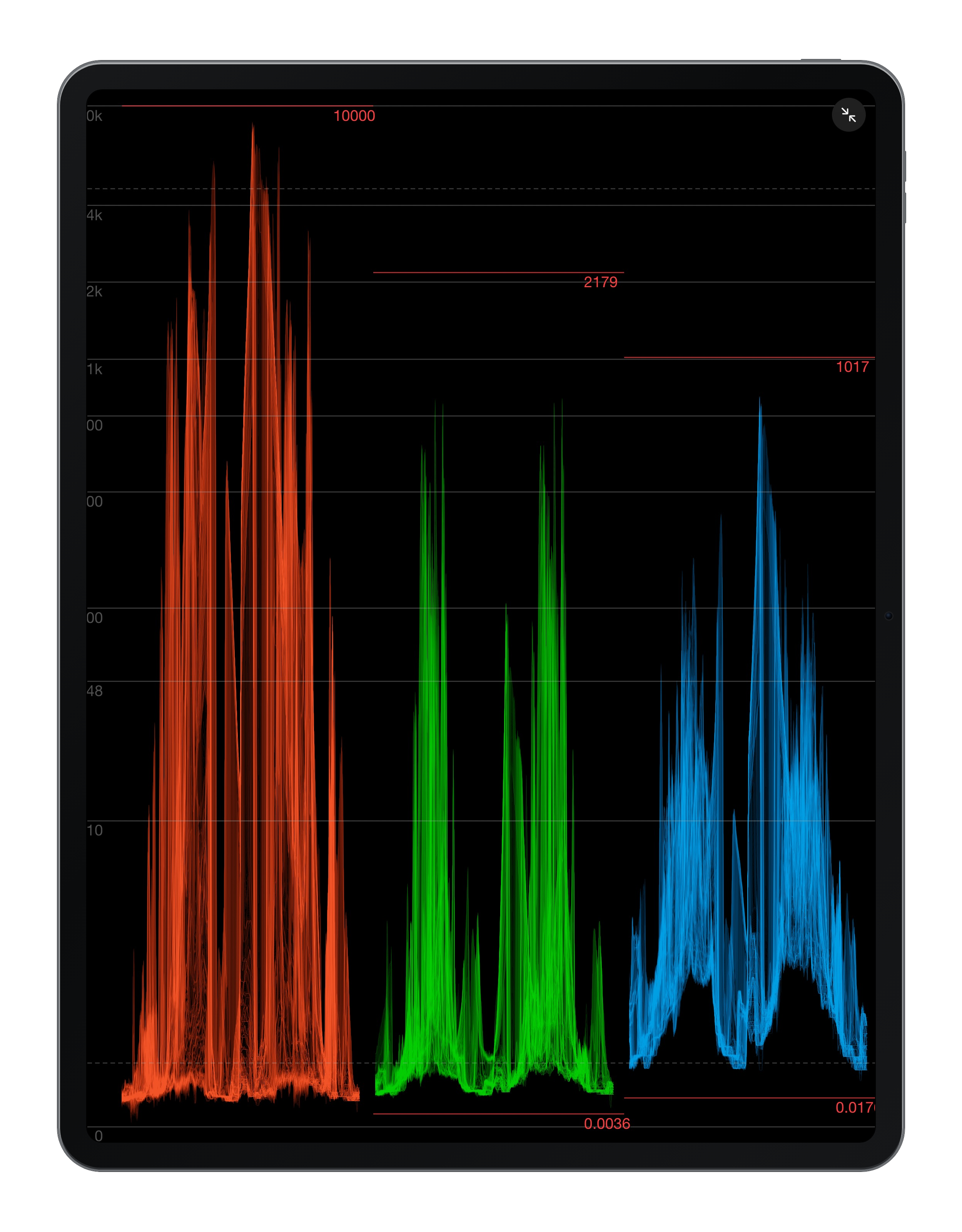
By default, the Waveform uses the **Scale Type** chosen in the source's input settings. To give a single Waveform its own scale, open **More Scope Settings → Signal & Filtering**, enable **Scale Override** and choose a **Scale**. With **PQ ST 2084**, the graticule and peak labels read in nits, from 0 to 10,000.

**Show Peak Levels**, in **More Scope Settings → Guides & Targets**, draws the red lines and numbers that mark each channel's highest and lowest values. It is on by default.

<figure><img src="https://565437294-files.gitbook.io/~/files/v0/b/gitbook-x-prod.appspot.com/o/spaces%2F-MFqn5MuayPgQPMZ9pwf%2Fuploads%2Fgit-blob-e0773996b5776c5a51bc22533fff0f80eb0b84d7%2Fomniscope-ipad-waveform-pq-scale.png?alt=media" alt="RGB Parade Waveform in Solo view using the PQ ST 2084 scale, with peak levels shown in nits"><figcaption><p>An RGB Parade in Solo with the PQ ST 2084 scale. The peak labels show the brightest and darkest value of each channel in nits.</p></figcaption></figure>

## Compare shadows, midtones and highlights

Enable **Split Low / Mid / High** in a Vectorscope's menu to inspect these luminance ranges separately. Adjust the split boundaries in its settings. Independent Vectorscope copies let you compare this display with an ordinary vectorscope.

## Sample colors

Open **Color Pins** from Source Signal settings and choose **Add Color Pin**. Drag the pin over the picture to sample another position; the readout follows the pin and a matching marker appears on the Waveform. The readout settings include RGB code values, floating-point RGB, HEX, CMYK, HSV and nits. Readout range and luma controls determine how the values are presented.

Pins sample the processed, cropped picture. They are not a way to bypass an input LUT or camera-color conversion. **Clear All Pins** removes the current pins.

## Check white balance

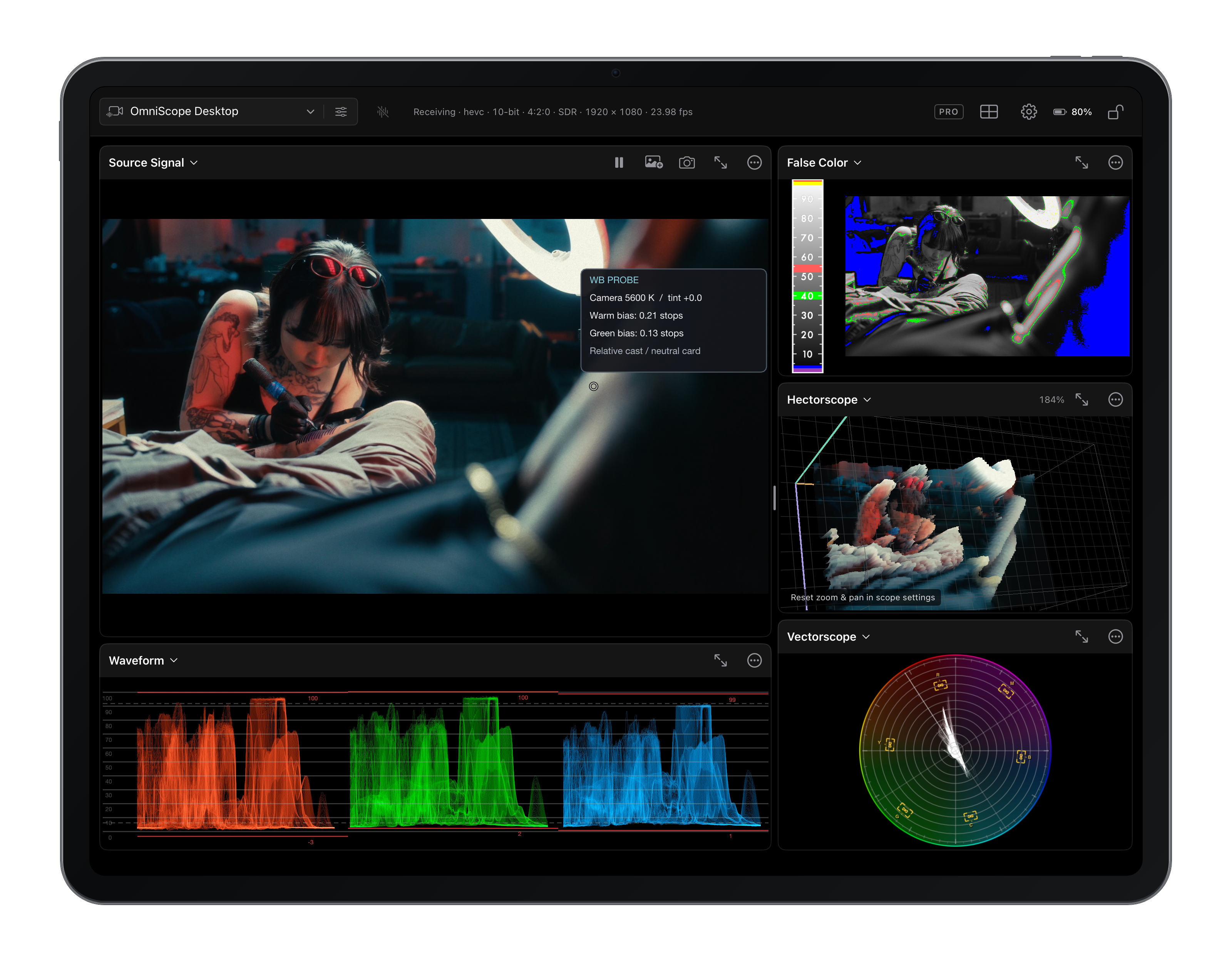
The **White-Balance Probe** is a Live Pack tool that measures the color cast of a neutral target, such as a gray card. Open the Source Signal ellipsis menu and enable **White-Balance Probe** under **Image & Analysis**. Then touch or drag on the picture to place the sampling point. The point stays where you lift your finger.

<figure><img src="https://565437294-files.gitbook.io/~/files/v0/b/gitbook-x-prod.appspot.com/o/spaces%2F-MFqn5MuayPgQPMZ9pwf%2Fuploads%2Fgit-blob-929fceb03305f058d552e044081b8bda92ed1cf6%2Fomniscope-ipad-wb-probe.png?alt=media" alt="Source Signal with the WB Probe readout next to its sampling point, alongside False Color, Hectorscope, Waveform and Vectorscope"><figcaption><p>The WB Probe readout follows its sampling point. Place the point on a neutral card or another surface that should be gray.</p></figcaption></figure>

The readout shows:

| Line                               | Meaning                                                                                                 |
| ---------------------------------- | ------------------------------------------------------------------------------------------------------- |
| **Camera 5600 K / tint +0.0**      | The camera white balance and tint you entered as a reference label. It is not measured from the picture |
| **Warm bias** or **Cool bias**     | How far red is above or below blue, in stops                                                            |
| **Green bias** or **Magenta bias** | How far green is above or below the average of red and blue, in stops                                   |
| **Relative cast / neutral card**   | The reading is valid. It assumes the sampled area should be neutral                                     |

A bias below 0.02 stops shows as **balanced**. The probe measures the interpreted input in linear Rec. 709 relative to a D65 neutral, before input LUTs and display conversion. If the sample is unusable, the status line asks you to fix exposure or choose a more neutral target, for example **Too dark - increase card exposure** or **Strong color - check neutral target**.

In **More Scope Settings → White Balance**, set the **Sampling Area** (1 × 1 to 9 × 9 pixels, 5 × 5 by default), the **Camera WB Reference** and the **Camera Tint Reference**. The camera references only label the readout; they do not correct the picture. The probe is not available while a reference comparison is shown.

## Check focus

**Focus Peaking** is also part of Live Pack. Open Source Signal's **More Scope Settings → Sharpness & Exposure** and enable **Focus Peaking**. Choose a **Peaking Mode** (Normal, Edges or Enhanced Edges), then adjust **Peaking Threshold** and **Peaking Color** to suit the shot.

## Inspect signal information

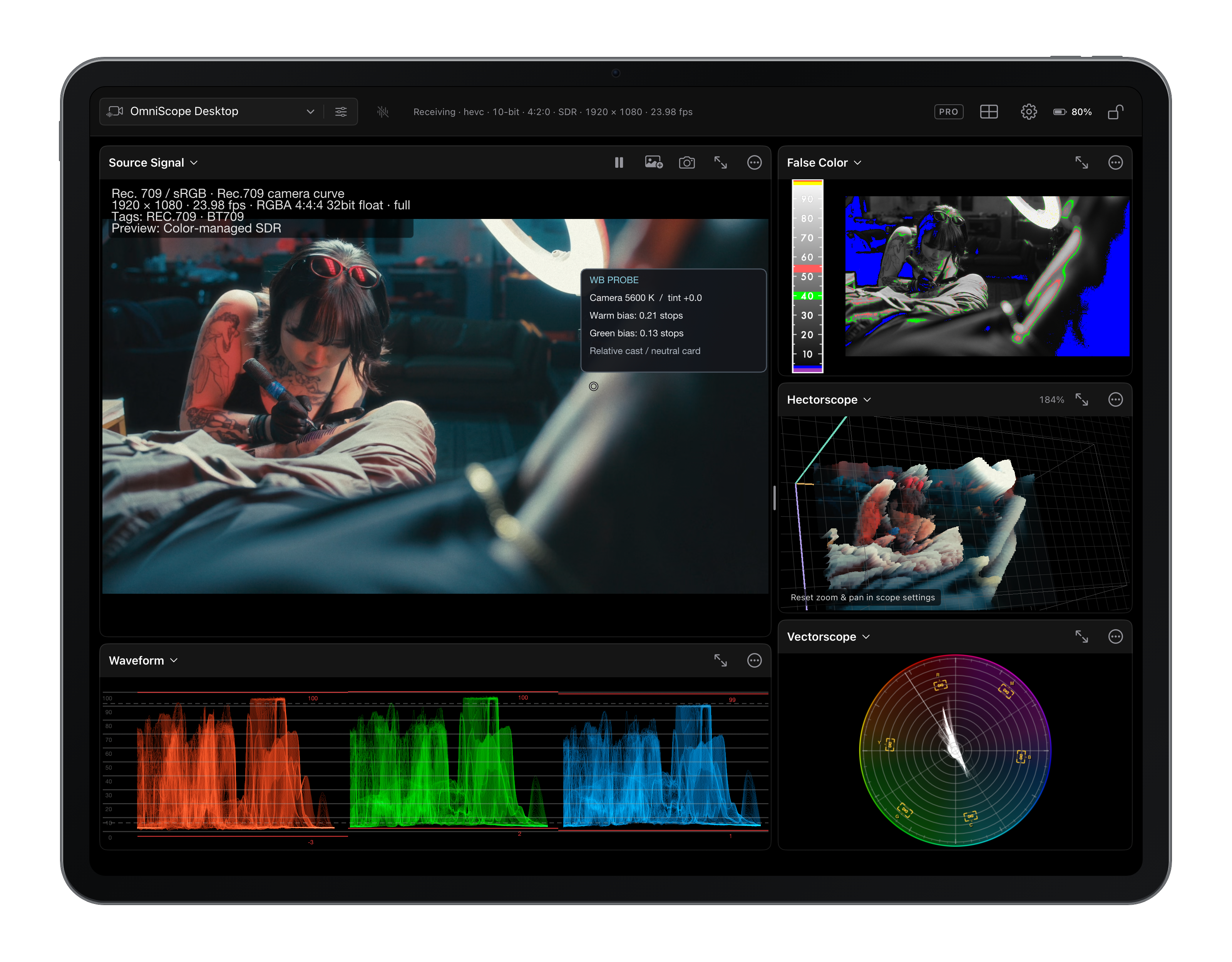
In a Source Signal cell, open **More Scope Settings → Signal & Display** and enable **Show Signal Info**. The overlay reports the routed input's resolution, frame rate, pixel format, signal range, color tags, selected input interpretation, preview conversion and input LUT state. It follows the displayed frame, including a frozen frame or reference comparison, and does not change the signal or scope measurements.

Use **Signal Info Text Size** to adjust the compact overlay. The setting is saved with the scope layout.

<figure><img src="https://565437294-files.gitbook.io/~/files/v0/b/gitbook-x-prod.appspot.com/o/spaces%2F-MFqn5MuayPgQPMZ9pwf%2Fuploads%2Fgit-blob-82dd337b901511cb2477b4b6a3805de2c44bcc44%2Fomniscope-ipad-signal-info.png?alt=media" alt="Source Signal showing the Signal Info overlay with color space, transfer curve, resolution, frame rate, pixel format, tags and preview mode"><figcaption><p>Signal Info in the top left corner of Source Signal: input interpretation, format, color tags and the active preview conversion.</p></figcaption></figure>

## Use False Color and Skin Tone presets

Open a False Color or Skin Tone cell's menu and choose **Presets**. You can save the current scope settings, recall or delete a saved preset, and undo the most recent preset change. False Color also lists the built-in presets.

To reuse desktop presets, choose **Import from Files…**. False Color accepts `.tfc4`, `.fc4`, `.tfc` and `.tfcp` files; Skin Tone accepts `.json` presets. Importing applies the preset's scope settings but leaves input interpretation and framing unchanged.

## Skin Tone detection

Skin Tone uses manually configured HSV or YCbCr color ranges. It does not perform automatic face segmentation on iPad. Objects with colors inside the selected range may also be highlighted. Narrow the detection window and luminosity/saturation limits to suit the shot.

## Audio scopes

Goniometer and Loudness Meter require incoming audio. Loudness instances have independent measurement histories. Seeking or looping a local video starts a new loudness measurement. See [Audio](/nobe-omniscope-for-ipad/audio.md) for monitoring and measurement controls.

Desktop tools not listed here, including Data Analyser and blanking detection, are not part of this iPad scope catalog.