> For the complete documentation index, see [llms.txt](https://docs.timeinpixels.com/llms.txt). Markdown versions of documentation pages are available by appending `.md` to page URLs; this page is available as [Markdown](https://docs.timeinpixels.com/nobe-omniscope-for-ipad/desktop-to-ipad.md).

# Desktop to iPad

Add an **iPad** output on macOS or Windows to send video or a rendered scope layout to OmniScope on iPad. Both devices must be on the same local network, through Wi-Fi or Ethernet.

{% hint style="warning" %}
**BETA** — For automatic QR pairing, use desktop beta **1.11.57b** or newer on Mac, or **1.11.58b** or newer on Windows. Use iPad **1.11.57 (12556)** or newer from TestFlight. If the iPad build is not listed yet, wait until it becomes available to your TestFlight group.
{% endhint %}

## Before you connect

1. On your Mac or Windows PC, open OmniScope **Preferences** and enable **Update to BETA builds automatically**. Choose **Help → Check for updates...** and install the latest desktop beta.
2. On your iPad, open **TestFlight → Nobe OmniScope** and install the latest available build that meets the requirement above.
3. Connect both devices to the same local network. The desktop can use Ethernet while the iPad uses Wi-Fi, provided the two connections reach the same local network. On Windows, allow OmniScope through Windows Firewall on the trusted local network if prompted.
4. Open a source on desktop and make sure it shows a live picture or is playing a clip.

## Scan a desktop QR code

### 1. Add an iPad output on your desktop

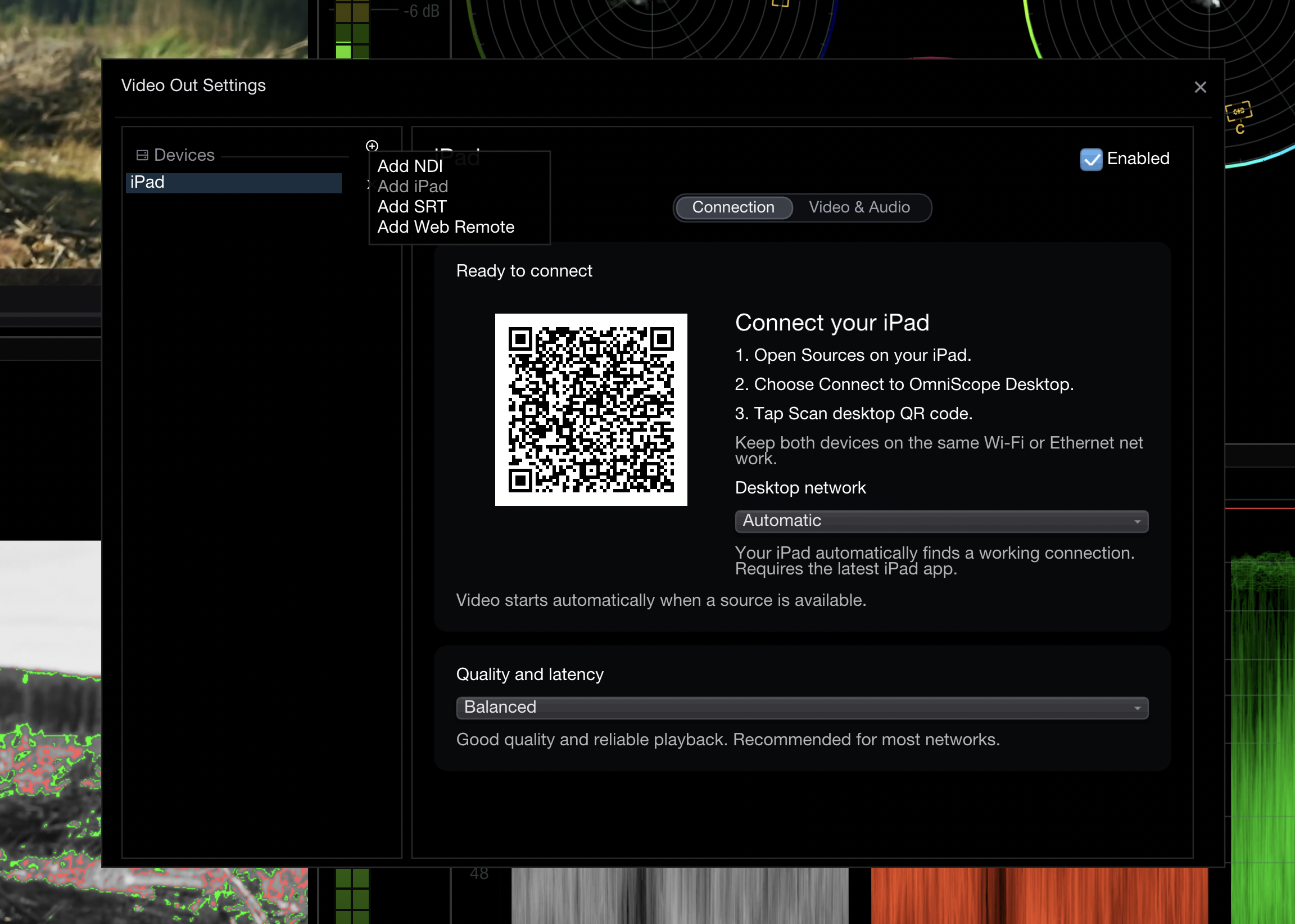
Open **Video Out Settings**, click **+** beside **Devices**, and choose **Add iPad**. If you previously set up an SRT output for this connection, disable it and use the dedicated **iPad** output instead.

The iPad output is enabled automatically and displays its QR code immediately in the **Connection** tab. Leave **Desktop network** set to **Automatic** and start with **Balanced** under **Quality and latency**.

<figure><img src="https://565437294-files.gitbook.io/~/files/v0/b/gitbook-x-prod.appspot.com/o/spaces%2F-MFqn5MuayPgQPMZ9pwf%2Fuploads%2Fgit-blob-e40b628dc16daf8cb4b99dd426ce93bf392636c7%2Fipad-desktop-output-automatic.png?alt=media" alt="Desktop Video Out Settings showing the iPad output, QR code, Automatic desktop network, and Balanced preset"><figcaption><p>The iPad output displays the code to scan. Use the QR code shown in your own app, not the example in this guide.</p></figcaption></figure>

Only one iPad output can exist at a time, including a disabled output. **Add iPad** is grayed out in this screenshot because an iPad output already exists. Select that output to use it, or remove it before adding a replacement.

### 2. Choose the desktop connection on iPad

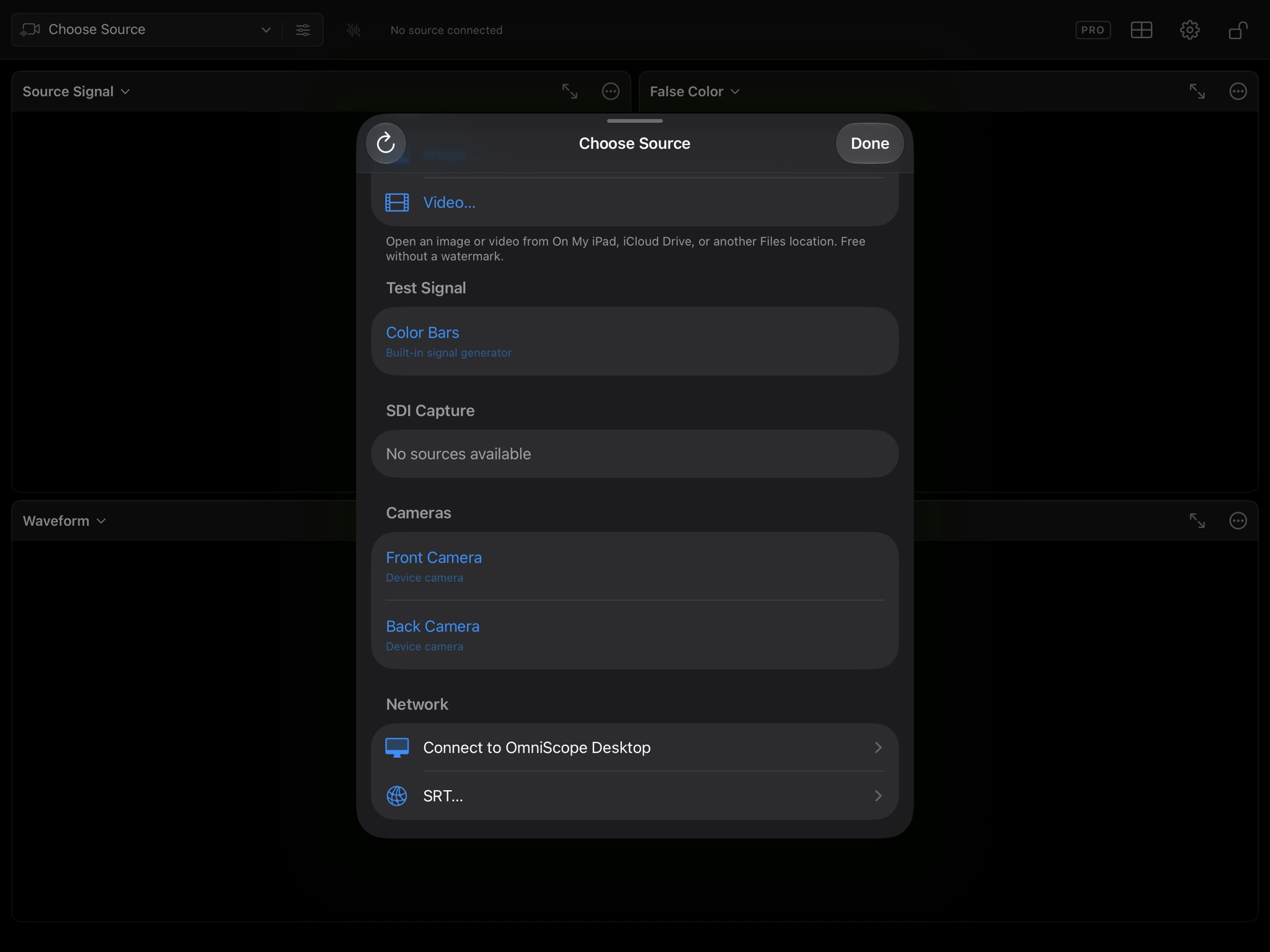
Tap **Choose Source** at the top left of the iPad app. Scroll to **Network** and tap **Connect to OmniScope Desktop**.

<figure><img src="https://565437294-files.gitbook.io/~/files/v0/b/gitbook-x-prod.appspot.com/o/spaces%2F-MFqn5MuayPgQPMZ9pwf%2Fuploads%2Fgit-blob-db2507652c4caa0d955261eae37f473163768851%2Fipad-choose-source-desktop.jpeg?alt=media" alt="iPad Choose Source sheet with Connect to OmniScope Desktop in the Network section"><figcaption><p>Choose Connect to OmniScope Desktop for the guided QR connection.</p></figcaption></figure>

### 3. Scan the QR code

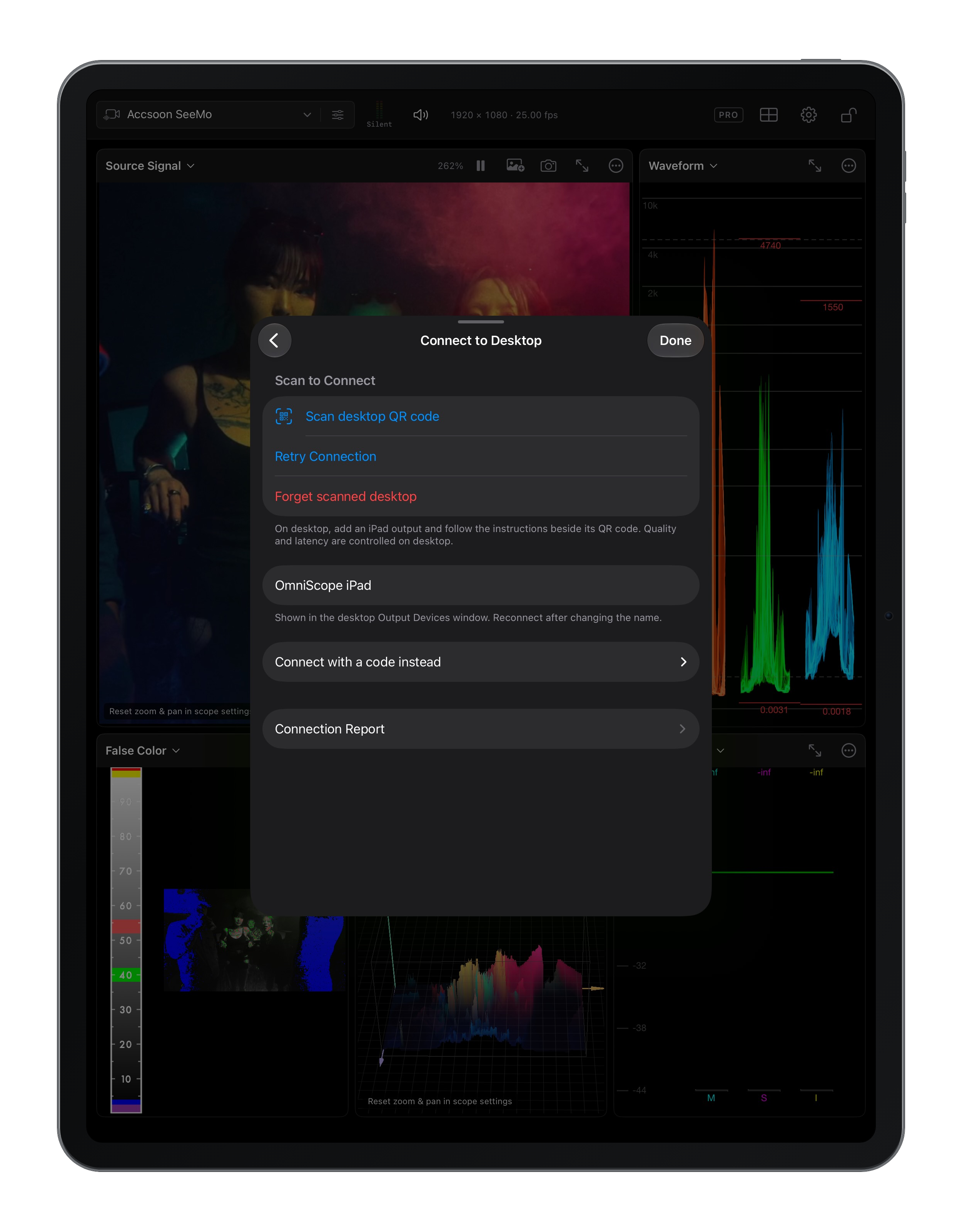
Tap **Scan desktop QR code**, allow camera access if prompted, and point the iPad camera at the code in your desktop iPad output. Allow local-network access if iPadOS asks for it.

<figure><img src="https://565437294-files.gitbook.io/~/files/v0/b/gitbook-x-prod.appspot.com/o/spaces%2F-MFqn5MuayPgQPMZ9pwf%2Fuploads%2Fgit-blob-d63daa221b02b9542af2b92f16b016b84277550e%2Fipad-scan-desktop-qr.jpeg?alt=media" alt="iPad Connect to Desktop screen showing Scan desktop QR code and Connection Report"><figcaption><p>Scan the desktop code here. You do not need to enter an IP address, port, or pairing code.</p></figcaption></figure>

With **Automatic** selected on desktop, the iPad tries the available desktop addresses to find a working connection. You do not need to choose between Wi-Fi and Ethernet addresses yourself. On Windows, automatic selection prefers Wi-Fi. If it selects a VPN or virtual adapter that the iPad cannot reach, choose the correct adapter beside the QR code and scan the updated code.

### 4. Check the picture

Streaming begins automatically when desktop video is available. Look for **Receiving** in the iPad's top bar and a live picture in **Source Signal**.

<figure><img src="https://565437294-files.gitbook.io/~/files/v0/b/gitbook-x-prod.appspot.com/o/spaces%2F-MFqn5MuayPgQPMZ9pwf%2Fuploads%2Fgit-blob-57d302413d5d88ef89dd8a81983e480f2b7a610c%2Fipad-desktop-stream-receiving.jpeg?alt=media" alt="iPad receiving desktop video with Source Signal, False Color, and Waveform visible"><figcaption><p>A connected stream shows Receiving and its video format in the top bar.</p></figcaption></figure>

The source selector may say **SRT** after connecting. This is normal: the dedicated iPad output uses SRT for transport, while the QR code handles connection setup.

## Reconnect or troubleshoot

The iPad remembers the scanned desktop. Open **Choose Source → Network → Connect to OmniScope Desktop → Retry Connection** to use it again. **Forget scanned desktop** removes that saved connection. Both buttons appear only after you have scanned a desktop.

<figure><img src="https://565437294-files.gitbook.io/~/files/v0/b/gitbook-x-prod.appspot.com/o/spaces%2F-MFqn5MuayPgQPMZ9pwf%2Fuploads%2Fgit-blob-12868fcb44f13c495adf120a3aa79726451e29b2%2Fomniscope-ipad-connect-to-desktop.png?alt=media" alt="Connect to Desktop sheet in portrait with Scan desktop QR code, Retry Connection, Forget scanned desktop, the iPad name field, Connect with a code instead and Connection Report"><figcaption><p>Connect to Desktop after a desktop has been scanned. The name field sets how this iPad appears on the desktop.</p></figcaption></figure>

The name field below the scan buttons (**OmniScope iPad** by default) is how this iPad appears in the desktop **Output Devices** window. Use a distinct name when several iPads are on the same network, then reconnect so the desktop shows the new name.

If no picture appears:

1. Check that both apps are updated, the desktop iPad output is **Enabled**, and the desktop source has video available. Current builds identify which app needs an update when their connection versions are incompatible.
2. Check local-network permission and ensure the network allows the devices to communicate. Guest Wi-Fi can isolate devices even when they use the same network name.
3. Scan the current desktop QR code again. If automatic selection still fails, choose a specific reachable Wi-Fi or Ethernet address under **Desktop network**, then scan the new code. Manual selection also provides a single-address QR code for older iPad builds.
4. On iPad, open **Connect to OmniScope Desktop → Connection Report** and choose **Share Report** or **Copy Report**. Current builds include the connected desktop version in the report. Include both app versions, the desktop operating system, and whether the desktop uses Wi-Fi, Ethernet, or both when contacting support.

See [Preferences and troubleshooting](/nobe-omniscope-for-ipad/troubleshooting.md#srt-pairs-but-no-video-appears) for more about connection reports.

## Choose what to send

The **Video & Audio** tab lets you choose **Source pass-through** or **All scopes**. Source pass-through sends the picture for analysis on the iPad; All scopes sends the rendered desktop workspace. The iPad output preserves source SDR, PQ or HLG signaling and uses HEVC 10-bit 4:2:0 internally. An 8-bit source does not gain precision, and 4:2:2 chroma detail is not preserved by 4:2:0 streaming.

{% hint style="warning" %}
The QR code grants access to the stream. Keep it out of shared screenshots and recordings.
{% endhint %}

## Quality and latency

Choose one preset on desktop; changes apply automatically:

| Preset       | Use                                           |
| ------------ | --------------------------------------------- |
| Low latency  | Fastest response on a stable network          |
| Balanced     | Default; good quality with recovery buffering |
| High quality | More detail, requiring more network bandwidth |

Low latency uses 60 ms of SRT recovery buffering. Balanced and High quality use 200 ms. These are buffer settings, not total camera-to-display delay. High quality increases bitrate without increasing buffering beyond Balanced. The iPad profile retries interrupted connections automatically.

For bitrate, resolution, frame-rate, color-conversion or network tuning controls, add an **SRT** output instead.

## Older desktop builds and code pairing

In SRT output settings, choose **Scan with iPad**, select the local address and port, then click **Start streaming**. Scan the displayed QR code with the same iPad scanner. **Reset QR pairing** revokes that SRT output's saved pairing key.

Alternatively, expand **Connect with a code instead** on iPad and tap **Make iPad Available**. On desktop, choose **Enter iPad code** in SRT output settings, select the iPad and enter its code. The low-latency control inside this section applies only to this alternative connection method.

## Manual SRT

Open **Choose Source → Network → SRT…**. Configure the address or port, **Caller** or **Listener**, latency, and authentication if used. The sender and receiver need complementary caller/listener roles and matching encryption settings. A listener waits for the caller to connect.

For desktop controls and manual URL syntax, see [SRT Output](/nobe-omniscope/outputs/srt-output.md). For viewing an HDR signal, see [Color management and HDR](/nobe-omniscope-for-ipad/color-and-hdr.md).